An iPhone can't save its own backup to an external drive. Apple's backup options are iCloud, a Mac or a PC, and those are the backups Apple lets you move to a replacement iPhone. A drive plugged into the iPhone does something narrower. It holds copies of the photos, videos and files you export to it. That is still worth having, especially for a photo library that has outgrown the phone or your iCloud plan, but it is a copy you manage by hand.
If that is what you want, the drive has to suit the phone. The port decides the plug, and the model decides the speed, because Apple gives most non-Pro USB-C iPhones USB 2. Three drives, depending on the phone and how you want to carry it:
- Samsung Portable SSD T7, for any USB-C iPhone. Samsung documents iPhone use and a low power draw.
- SanDisk Creator Phone SSD, if you want the drive to stick to the back of a MagSafe iPhone.
- SanDisk iXpand Flash Drive Luxe, for an iPhone with Lightning, as long as you are fine using SanDisk's app instead of Apple's Files app.
This guide is AI-generated from Apple, Samsung and SanDisk documentation. GearExplained did not test these drives, and no independent review was used for the picks. The product cards at the end link to Amazon, and GearExplained may earn a commission. That does not decide which products appear here.
What a drive can hold, and what still needs a computer
Apple's comparison of backup methods says an iCloud backup is stored in iCloud and always encrypted, and a computer backup is stored on your Mac or PC. Either one can carry your information and settings to a replacement phone. The drive you plug into the iPhone isn't one of the choices.
What the drive can take:
- Photos and videos, exported from the Photos app. Apple's steps end with saving to your external storage device under Locations.
- Files from the Files app, such as documents, PDFs and downloads. Apple says Files and other supported apps can access files on external drives.
For a backup you can restore from, use iCloud or a computer. A computer backup made with the Finder or the Apple Devices app lands in a MobileSync folder on that computer, and Apple's support page shows where to find it on a Mac or a PC. One catch matters here. Apple says a computer backup doesn't include data already stored in iCloud, such as iCloud Photos. If your photos live in iCloud Photos, a computer backup won't hold them, so exporting them to a drive is one way to keep your own copy.
How fast each iPhone can copy to a drive
| iPhone | Port | Data speed Apple lists | Most it can move | 100GB at that rate |
|---|---|---|---|---|
| iPhone 14 family and earlier Lightning models | Lightning | USB 2 speeds | 60MB/s | About 28 minutes |
| iPhone 15, 15 Plus, 16, 16 Plus, 16e, 17, 17e and iPhone Air | USB-C | USB 2, up to 480Mb/s | 60MB/s | About 28 minutes |
| iPhone 15 Pro, 16 Pro, 17 Pro and 18 Pro, with their Pro Max models, and iPhone Duo | USB-C | USB 3, up to 10Gb/s | Set by the drive and cable | Depends on the drive |
Sources: Apple's camera adapter page, which says every iOS device outside its USB 3 list uses USB 2 speeds, and tech specs for the iPhone 15, 15 Pro, 16, 16 Pro, 16e, 17, 17e, 17 Pro, Air, 18 Pro and Duo. The 60MB/s and 28-minute figures are our arithmetic: 480 megabits divided by 8 is 60 megabytes a second, and 100,000MB at that rate takes about 1,670 seconds. Real copies run slower, because that is the ceiling before any overhead.
For anyone on the first two rows, that ceiling changes the buying decision. A drive rated at 1,000MB/s and a cheap flash drive both come across at USB 2 speed, so buy for capacity, size and the right plug. On the third row the phone stops being the limit, and Apple's spec pages add that 10Gb/s needs a USB 3 cable with that rating. Use the cable that comes with the drive. Samsung's FAQ recommends its own cable and says other cables can cause recognition problems or slower transfers.
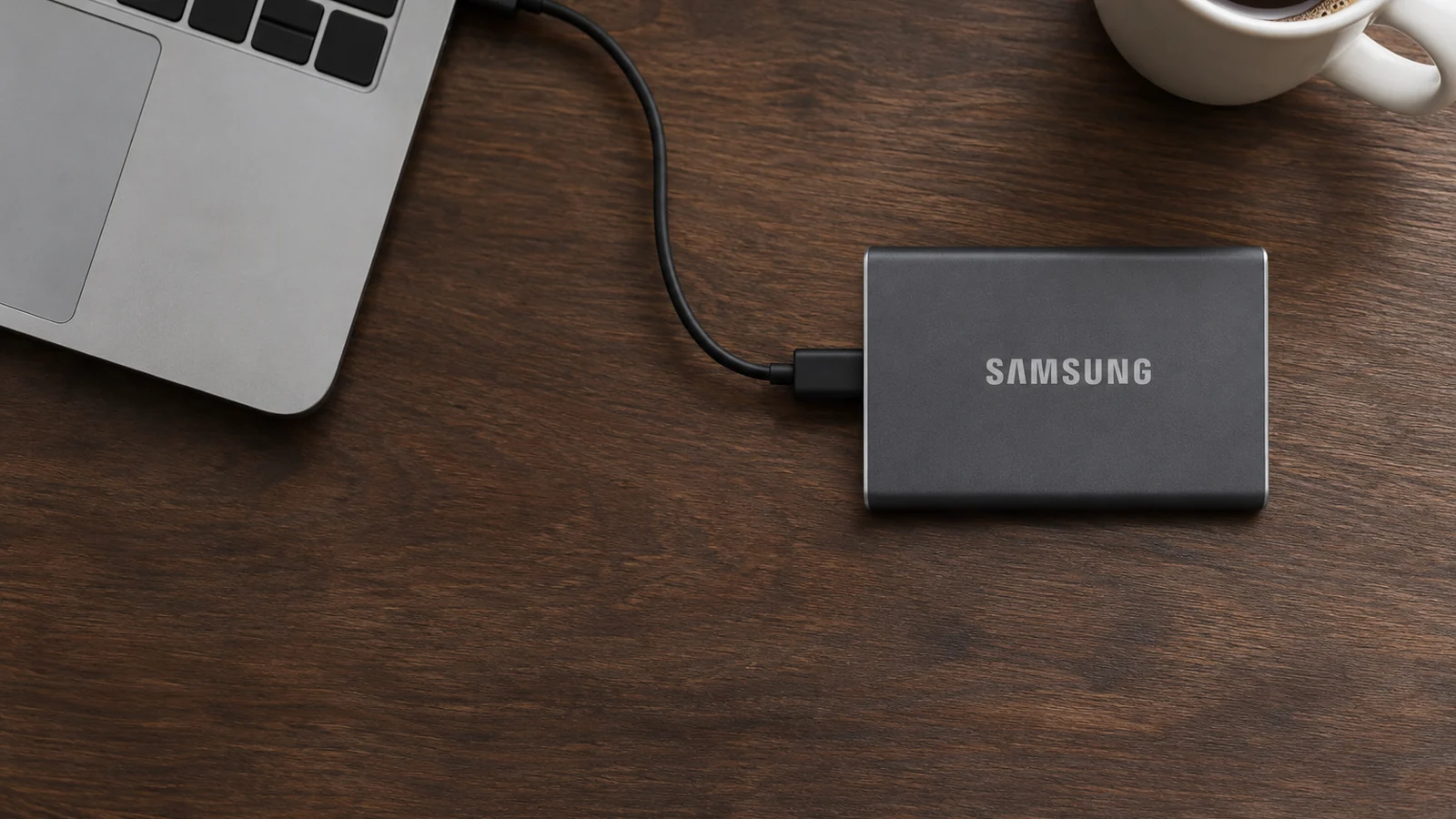
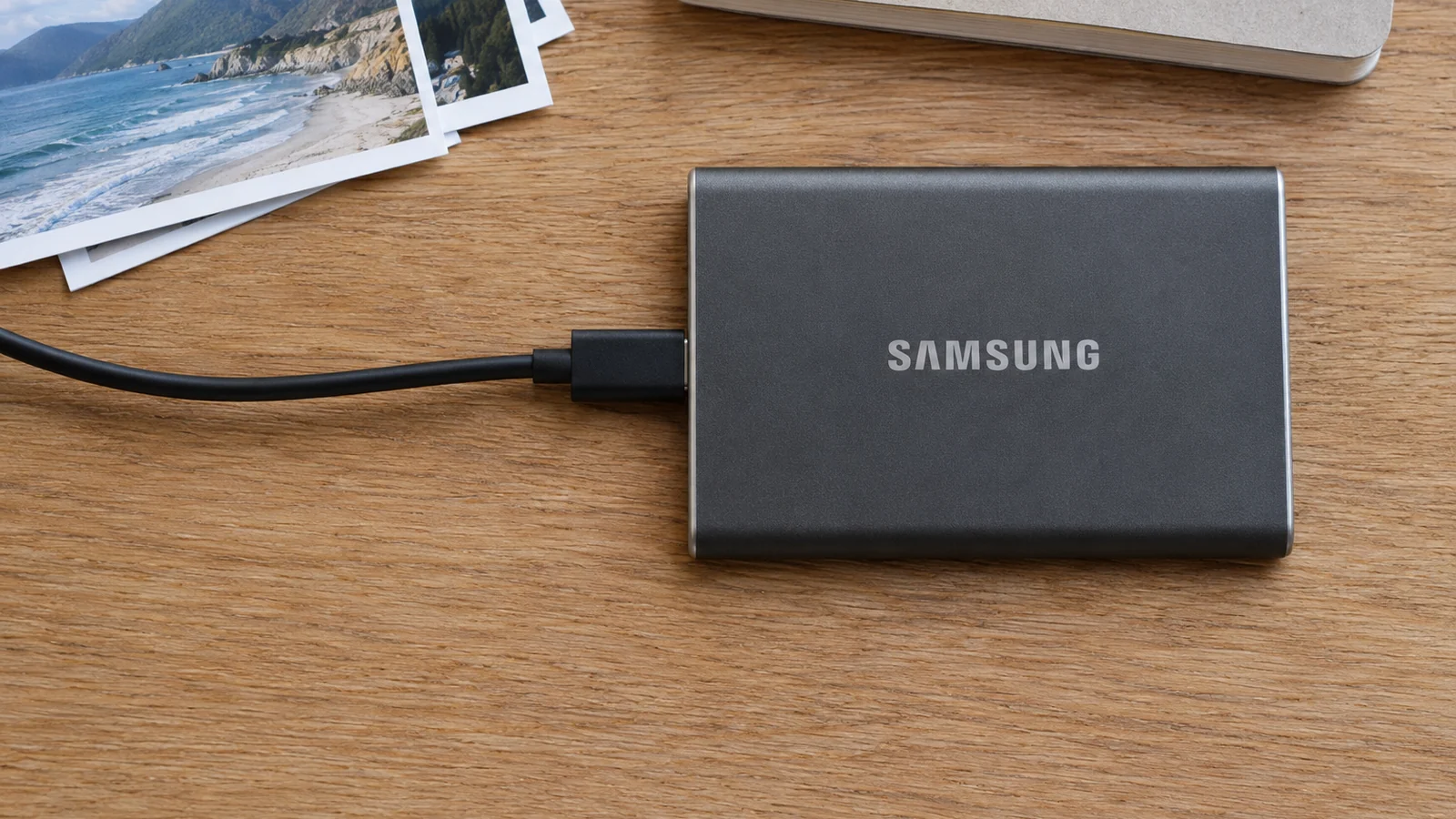
Samsung Portable SSD T7
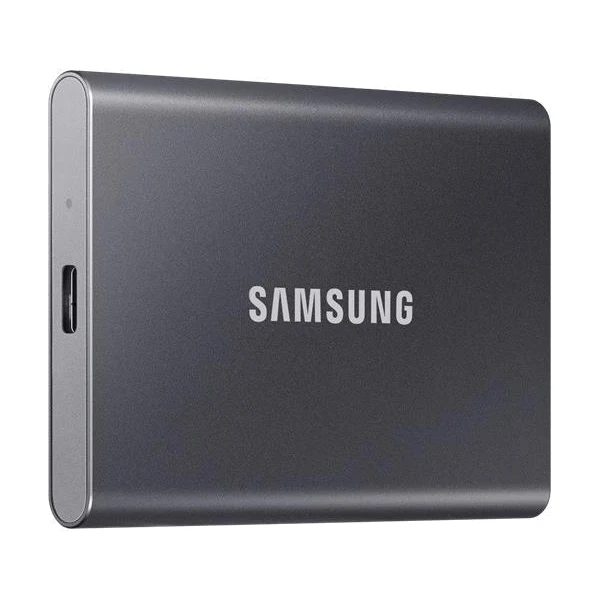
This is the default pick for a USB-C iPhone, because Samsung answers the two questions that decide whether a drive works on a phone. Its FAQ says the T7 was recognized and transferred data on the iPhone 15, 15 Plus, 15 Pro and 15 Pro Max in Samsung's internal testing. It also says Samsung's portable SSDs run on as little as 2.5W, which is the issue Apple flags with hard drives.
The T7 ships formatted exFAT, which is on Apple's list, and Samsung says it can be reformatted as APFS. The data sheet lists 1TB, 2TB and 4TB models, up to 1,050MB/s read and 1,000MB/s write over USB 3.2 Gen 2, and both USB-C to C and USB-C to A cables in the box. The A cable is useful for plugging the same drive into an older computer.
Samsung's FAQ names only the iPhone 15 family. It doesn't list later iPhones as tested, so that is the limit of what Samsung has said. The speed rating matters only on a Pro iPhone or iPhone Duo.
SanDisk Creator Phone SSD
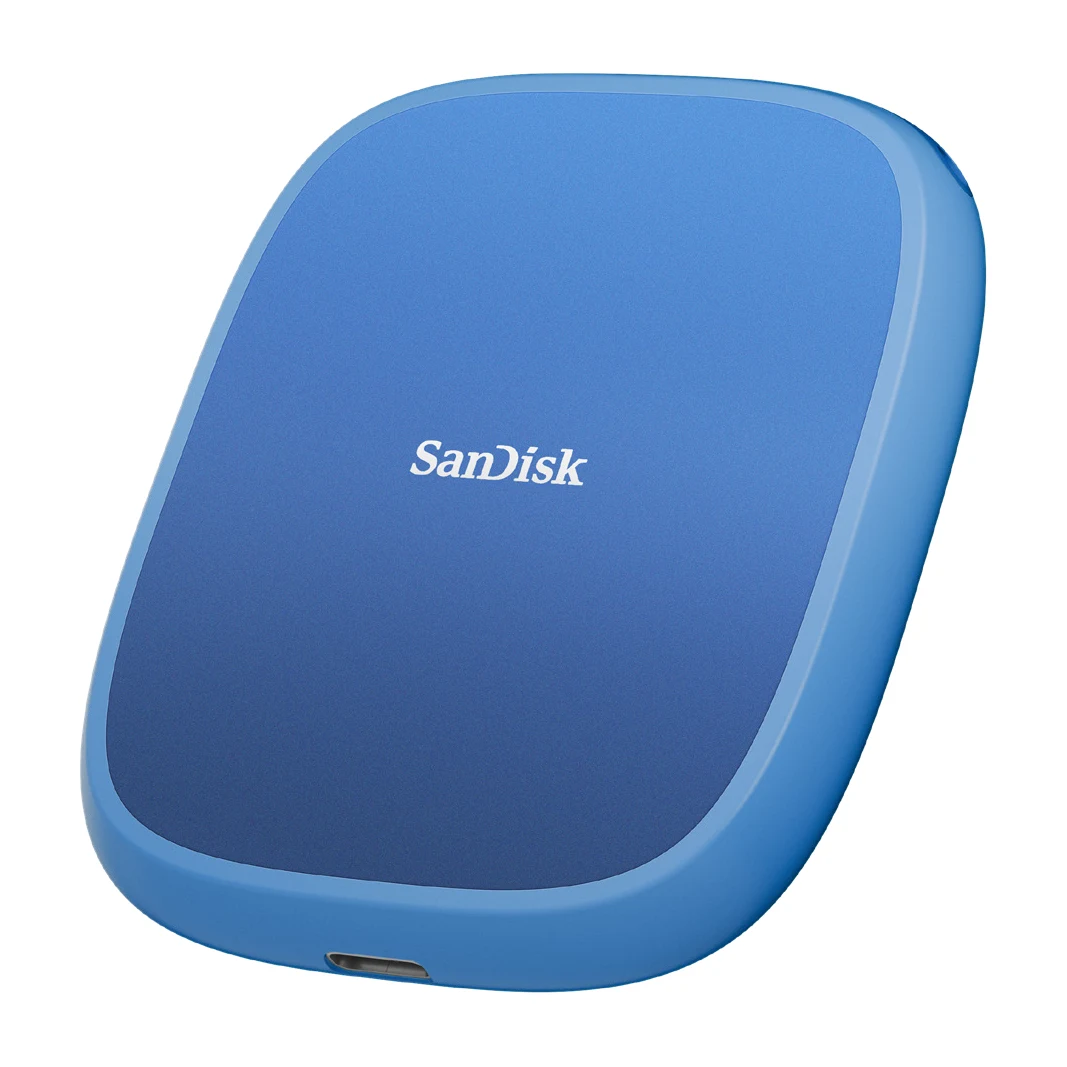
Choose this one if you want the drive attached to the phone rather than dangling from it, for example while exporting a big batch of videos. SanDisk says it attaches with MagSafe and includes a magnetic ring you can stick to something else, such as the back of a laptop screen.
SanDisk lists iOS 17 or later, ships the drive formatted exFAT and says it works out of the box with the iPhone 16 Pro and Pro Max. The data sheet gives 1TB and 2TB capacities, up to 1,000MB/s read and 950MB/s write over USB 3.2 Gen 2, IP65 water and dust resistance and drop protection up to three meters, based on SanDisk's own testing.
Two limits. The magnet needs MagSafe, and Apple's iPhone 16e specs list Qi charging but no MagSafe, so on that phone the drive will hang by its cable. SanDisk also publishes no power figure. It does say the drive records Apple ProRes 4K at 60 frames a second, and Apple requires a drive that draws 4.5W at most for that, but SanDisk doesn't state the draw itself.
SanDisk iXpand Flash Drive Luxe
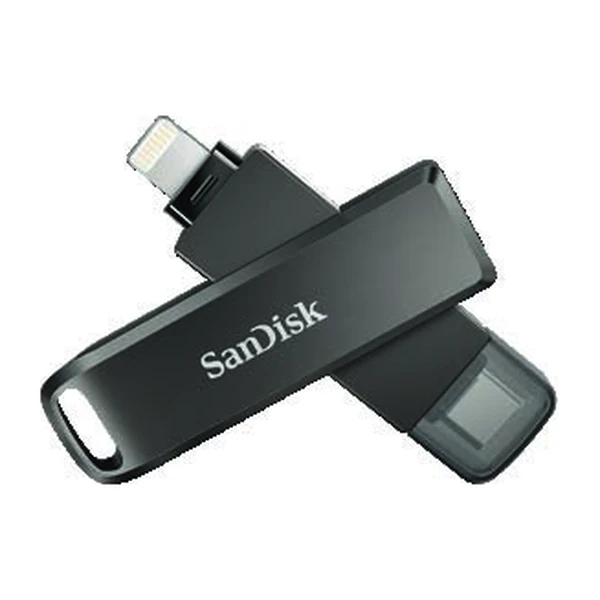
For an iPhone with Lightning, this flash drive plugs straight in, with no adapter. It has a Lightning plug and a USB-C plug on one swivel body, in 64GB, 128GB and 256GB. SanDisk's data sheet says its app can back up photos and videos automatically and password-protect files. That data sheet dates from 2020 and names the iXpand Drive app. SanDisk's current page calls it the SANDISK App.
Read SanDisk's compatibility page before buying, because the Lightning end works differently from a normal drive. SanDisk says Lightning drives don't show in Apple's Files app. SanDisk says the SANDISK App, version 3.2 or later, can be used with Lightning ports, and it lists iOS 17 or later as a requirement. On a USB-C iPhone, SanDisk lists the same drive as working in Apple's Files app. SanDisk also says phone connection adapters aren't supported.
SanDisk gives no speed figure. On a Lightning iPhone it doesn't matter much, since Apple says those phones copy at USB 2 speeds. The real tradeoff is capacity: 256GB is the largest size, against 2TB or more for the two SSDs.
If you'd rather use a regular drive with a Lightning iPhone, Apple's route is its Lightning to USB 3 Camera Adapter. Apple says to connect that adapter to a USB power adapter when the drive needs power, and that adapter's support page explains its Lightning port powers both the iPhone and the connected device. The drive then shows up in Files like any other.
Three drives side by side
| Drive | Plugs into | Sizes | Listed speed | Works in Apple's Files app | Power figure |
|---|---|---|---|---|---|
| Samsung Portable SSD T7 | USB-C iPhones, by cable. Samsung names the iPhone 15 family. | 1TB, 2TB, 4TB | 1,050MB/s read, 1,000MB/s write | Yes, exFAT out of the box | As little as 2.5W |
| SanDisk Creator Phone SSD | USB-C iPhones, by cable, held on with MagSafe | 1TB, 2TB | 1,000MB/s read, 950MB/s write | Yes, exFAT out of the box | Not published |
| SanDisk iXpand Flash Drive Luxe | Lightning or USB-C iPhones, plugged in directly | 64GB, 128GB, 256GB | Not published | USB-C iPhones only. Lightning needs SanDisk's app. | Not published |
We left out the unbranded "iPhone photo stick" drives that fill shopping results, because this guide includes only drives whose makers document iPhone use. A listing that says "compatible with iPhone" doesn't tell you whether the drive shows in Files, which app it needs or how much power it draws.
Before you plug in a drive you already own
Apple's external storage page sets two conditions. The drive must have a single data partition, and it must be formatted as APFS, APFS encrypted, macOS Extended, exFAT, FAT32 or FAT. NTFS, the format many Windows PCs use, isn't on that list. Apple says you can reformat a drive in the Files app or on a computer. Copy off anything you need first, because reformatting erases the drive.
Power is the other problem, and it is why this guide picks SSDs over spinning hard drives. Apple says external hard drives often need their own power with an iPhone. If a hard drive doesn't supply its own, Apple's answer on a USB-C iPhone is a powered USB hub. A hard drive with its own power supply avoids the issue but isn't something you carry around with a phone.
Copying your photos and files to the drive
For photos and videos, Apple's steps are:
- Connect the drive to the iPhone.
- If you use iCloud Photos, open Settings, tap your name, tap iCloud, then Photos, then iPhone Storage, and choose Download and Keep Originals.
- In Photos, tap Select and choose the photos and videos.
- Tap Share, then Export Unmodified Original.
- Under Locations, tap the drive, then tap Save.
For documents and other files, Apple's copy steps in the Files app are to tap Select, choose the items, tap More, then Copy Items, then go to the new location, touch and hold a folder and tap Paste. The drive appears in Files under Locations. Apple says to disconnect it by removing it from the port.
Each export is a one-time copy. Nothing updates the drive later unless you repeat the export, or use an app that does it for you, such as SanDisk's for the iXpand drive. Keep the iCloud or computer backup going as well, because that is still the only one Apple lets you restore a phone from.