Look at the bottom of your iPhone before you buy anything. iPhone 15 and later have USB-C, and iPhone 5 through iPhone 14 have Lightning, so the port decides which reader will fit. The second thing to check is the model, because Apple gives most non-Pro USB-C iPhones the same USB 2 data speed as Lightning, and no reader or card can get past that.
Three readers, depending on your phone and your card:
- Apple USB-C to SD Card Reader, for any USB-C iPhone and a full-size SD card from a camera.
- Anker MagGo USB-C Adapter, if your card is microSD or you want to charge the iPhone while the reader is plugged in.
- Apple Lightning to SD Card Camera Reader, for iPhone 5 through iPhone 14. Apple's support pages still cover it, but its Apple Store address no longer opens a product page, so see the note in that section.
This guide is AI-generated from Apple and Anker documentation, reviews by SchwarzTech and Digital Camera World, and a PetaPixel article. GearExplained did not test these readers. The product cards at the end link to Amazon, and GearExplained may earn a commission. That does not decide which products appear here.
Which reader fits your iPhone, and how fast it can go
| iPhone | Port | Data speed Apple lists | Most it can move |
|---|---|---|---|
| iPhone 5 through the iPhone 14 family, including iPhone SE (3rd generation) | Lightning | USB 2 speeds | 60MB/s |
| iPhone 15, 15 Plus, 16, 16 Plus, 16e, 17, 17e and iPhone Air | USB-C | USB 2, up to 480Mb/s | 60MB/s |
| iPhone 15 Pro, 16 Pro, 17 Pro and 18 Pro, with their Pro Max models, and iPhone Duo | USB-C | USB 3, up to 10Gb/s | Set by the card and reader |
Sources: Apple's camera adapter page and tech specs for the iPhone 14, 15, 15 Pro, 16, 16 Pro, 16e, 17, 17e, 17 Pro, Air, 18 Pro and Duo. The 60MB/s figure is our arithmetic: 480 megabits divided by 8 bits in a byte, before any overhead.
That table changes what is worth buying. On every iPhone in the first two rows, the phone sets the ceiling. A card sold as 200MB/s still comes across at USB 2 speed, so paying for more speed than that in a card or a UHS-II reader will not shorten the wait. Buy for fit and convenience instead.
On the third row, the phone stops being the limit. Apple's spec pages add that 10Gb/s needs a USB 3 cable with that rating. Both readers below have fixed cables, so you can't swap in a better one. Anker calls its plug 10Gbps. Apple says only that its reader works at UHS-II speeds and gives no MB/s figure.
Anker lists 312MB/s for its reader, and SchwarzTech says to expect that only with a Pro-level iPhone and fast cards. PetaPixel makes the harder point that the card is the bottleneck, not the reader, and that the big number on a card is often a best-case read speed, with writes far lower.
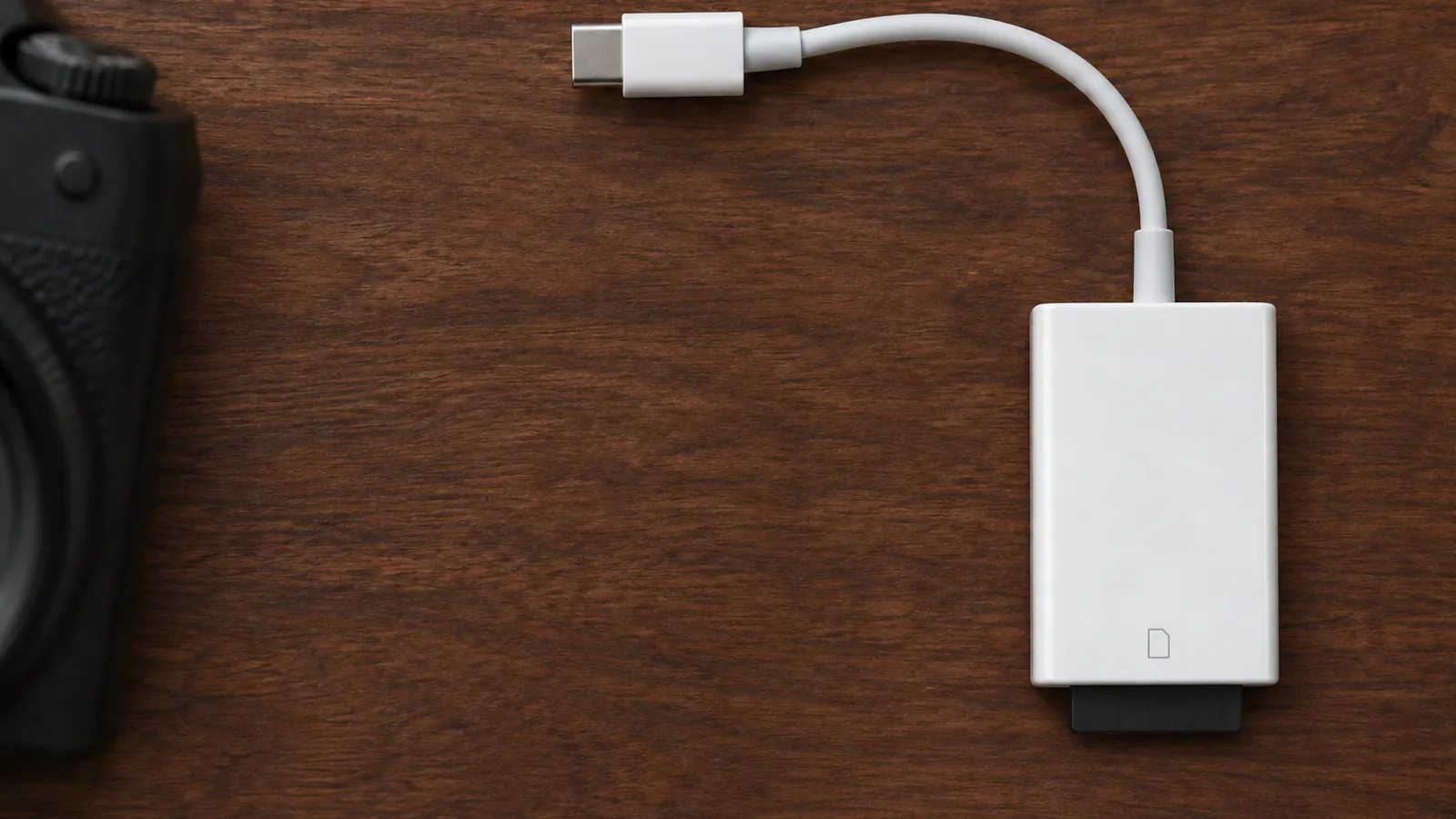
Apple USB-C to SD Card Reader
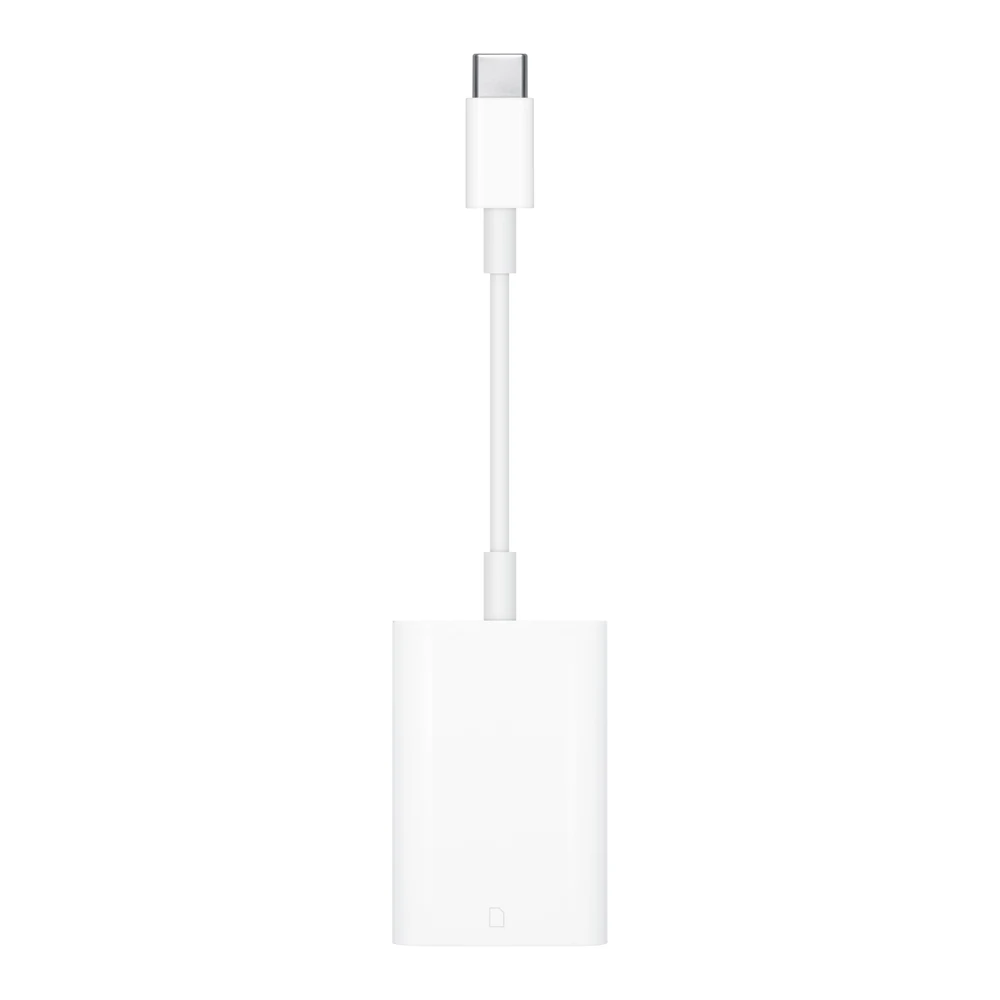
Pick this one if you shoot on a camera with a full-size SD card and own any USB-C iPhone. Apple's store page lists every USB-C iPhone from the iPhone 15 family to the iPhone 18 Pro and iPhone Duo, which no third-party list here matches. It is also one of the adapters Apple's own import instructions name.
Apple's user guide lists SD, SDHC and SDXC cards up to UHS-II speeds, plus MMC and MMC Plus. Mini and microSD cards work only with an adapter, and Apple doesn't include one. There is no second port, so the iPhone can't charge through the reader during a long transfer.
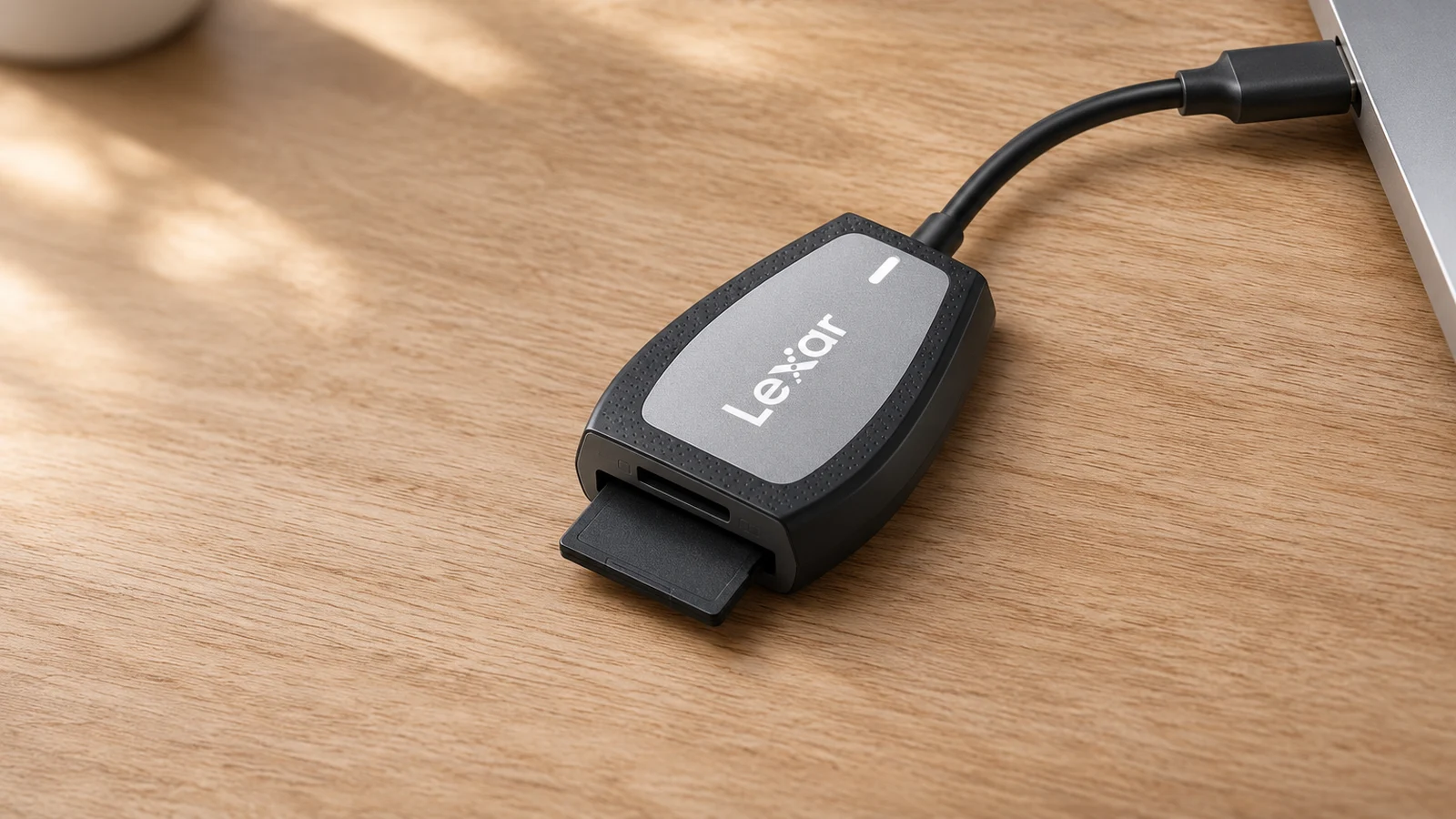
Anker MagGo USB-C Adapter (3-in-1, 10Gbps, For iPhone)
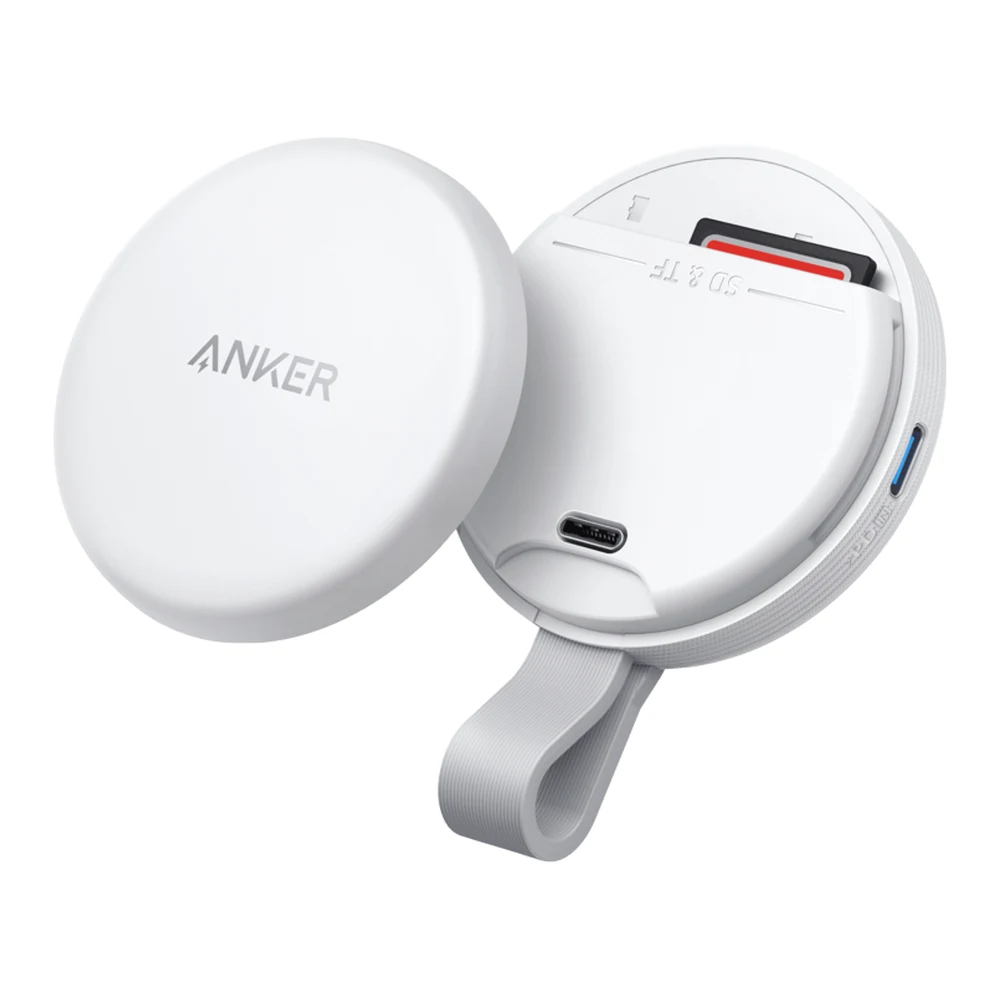
This is the pick for a microSD card from a drone or action camera, because it has a full-size SD slot and a microSD slot, each up to 2TB. Anker calls the microSD slot TF, another name for the same card. SchwarzTech reports that both slots work at once, so you can copy between cards.
It is also the only reader here that charges the phone during a transfer. The USB-C port on its side accepts power, with Anker listing 42.5W maximum output and no PPS. Anker says that port carries no data, so it is for power only. Digital Camera World measured up to 40W, although it quotes a 27W advertised figure that doesn't match Anker's page.
Check three things before buying:
- Anker's list names the iPhone 15 and 16 series and iOS 17 or later, and stops there. SchwarzTech's March 2026 review says the plug attaches to any iPhone 15 or later, but Anker doesn't name the iPhone 17 or 18 models, so its list is shorter than Apple's.
- The magnets work only with MagSafe devices. Apple's iPhone 16e specs list no MagSafe, so on that phone the puck will hang by its cable or sit on a table. Anker also rules out non-magnetic cases, naming OtterBox Defender.
- Digital Camera World warns that the built-in cable runs into problems with thick cases or cases with a port flap.
Digital Camera World says the reader can record 4K ProRes at 60 frames a second to a card that sustains 220MB/s writes, and Anker's FAQ gives the same 220MB/s floor plus a capacity over 256GB. That applies only to Pro iPhones, because those are the spec pages that list ProRes recording to external storage. PetaPixel doesn't recommend it for ProRes Log at all, because SD cards can't hold those speeds under load, and it warns that SD Express cards won't work in this reader. Its advice is that photos and non-log video are the reasonable use. Treat this as a reader for moving files, not a replacement for an external SSD.
Apple Lightning to SD Card Camera Reader
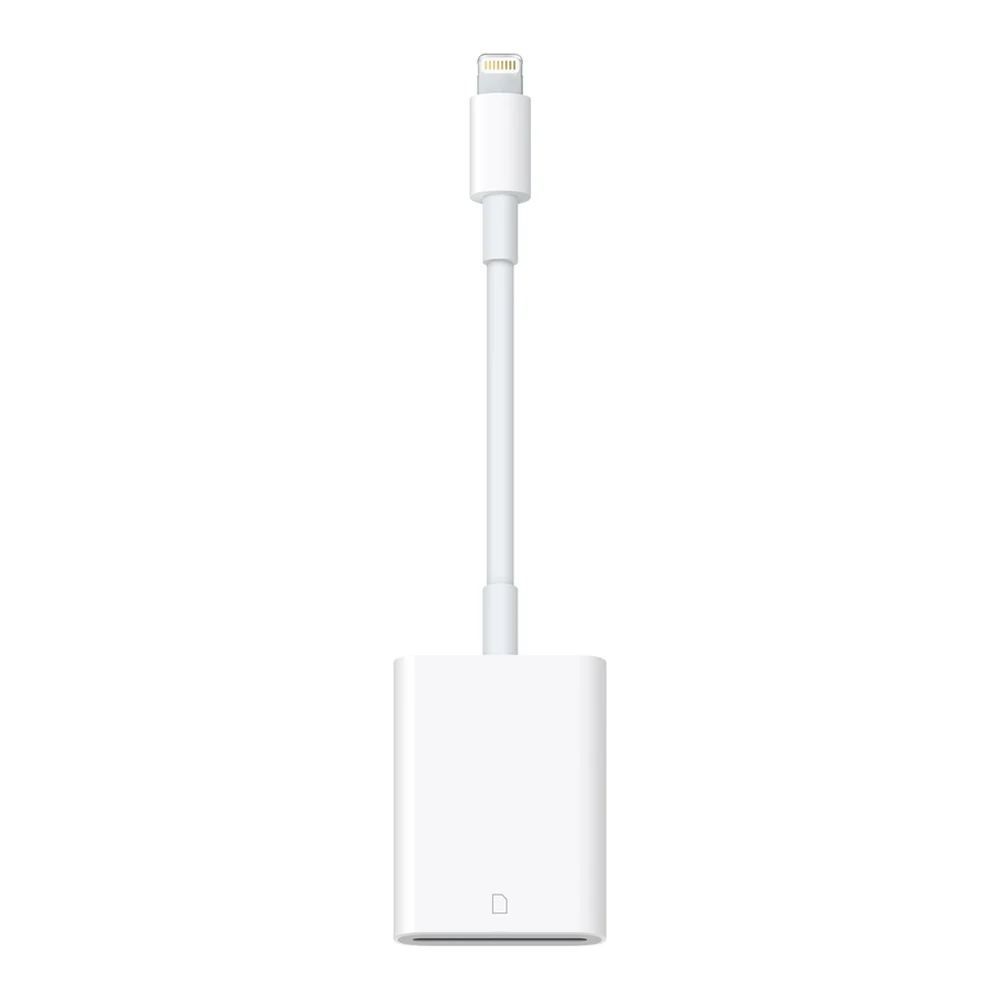
If your iPhone has Lightning, this is the straightforward match. Apple's support page still lists it among the adapters for importing and exporting photos. Product copy on an Apple reseller's listing names iPhone models through the iPhone 14 family and says it handles JPEG and RAW photos and H.264 and MPEG-4 video at up to USB 2 speeds.
The catch is finding one. When we checked on November 2, 2026, the Apple Store address for this part, MJYT2AM/A, went to a general accessories search rather than a product page. Apple hasn't said anything we could find about ending the product, so we can only report that its own store page is gone. Check the part number on any listing, because the shopping results for this search are full of look-alike readers.
If you can't find one, Apple's Lightning to USB 3 Camera Adapter is the fallback. Apple lists SD card readers among the USB-A devices it works with, and it has a Lightning port for power when an accessory draws too much. You would then need a USB-A SD reader as well, and the iPhone still transfers at USB 2 speed.
Three readers side by side
| Reader | Fits | Card slots | Listed speed | Charges iPhone | Magnets |
|---|---|---|---|---|---|
| Apple USB-C to SD Card Reader | USB-C iPhones | SD. microSD with an adapter. | UHS-II, no MB/s figure | No | No |
| Anker MagGo USB-C Adapter | USB-C iPhones. Anker names the 15 and 16 series. | SD and microSD | 312MB/s maximum | Yes | Yes, on MagSafe iPhones |
| Apple Lightning to SD Card Camera Reader | Lightning iPhones | SD. microSD with an adapter. | USB 2 | No | No |
We left out the unbranded readers that fill the shopping results, because this guide includes only readers with maker documentation we could check. A listing that says "MFi certified" or "compatible with iPhone" doesn't tell you the phone's speed limit or which steps will work.
Getting photos and files off the card
There are two routes on the iPhone, and they behave differently.
Photos is for pictures and video straight from a camera. Apple's steps are to connect the reader, insert the card, open Photos and tap the Imports tab. In iOS 18 you tap Collections, then find the card under Devices. Tap Import All or choose items, and you may be asked whether to keep or delete them on the card afterward. Apple warns that these adapters import only content captured by digital cameras, and that files renamed, edited or copied to the card may not import. A format iOS can't display can still be imported, for moving to a computer later.
Files is for everything else. Apple says you can open the card in the Files app: tap Browse, then the card's name under Locations. The card must have a single data partition and be formatted as APFS, APFS encrypted, macOS Extended, exFAT, FAT32 or FAT. NTFS isn't on that list, so a card formatted on a Windows PC with NTFS won't qualify. Apple's Photos steps name its own adapters, so plan on Files with the Anker reader. SchwarzTech says just about any card reader works there on a USB-C iPhone.
Going the other way, Apple's steps are to select items in Photos, tap Share, choose Export Unmodified Originals, then pick the card under Locations and tap Save.