Any USB-C drive plugs into a MacBook Air from 2018 on. The two questions worth settling before you buy are how fast the drive will actually run, and how large it needs to be if it is going to hold Time Machine backups.
Speed first. Apple lists the Air's ports at up to 40Gb/s for Thunderbolt and USB4, but many portable SSDs, Samsung's T7 among them, are plain USB drives rated at 10Gb/s. Drives sold as 20Gbps USB 3.2 Gen 2x2 are the trap. Apple doesn't list that mode for any MacBook Air, and on a Mac they drop back to 10Gb/s. Size is simpler, because Apple gives a rule: a Time Machine disk should have at least twice your Mac's storage.
Three drives, by what you want the drive to do:
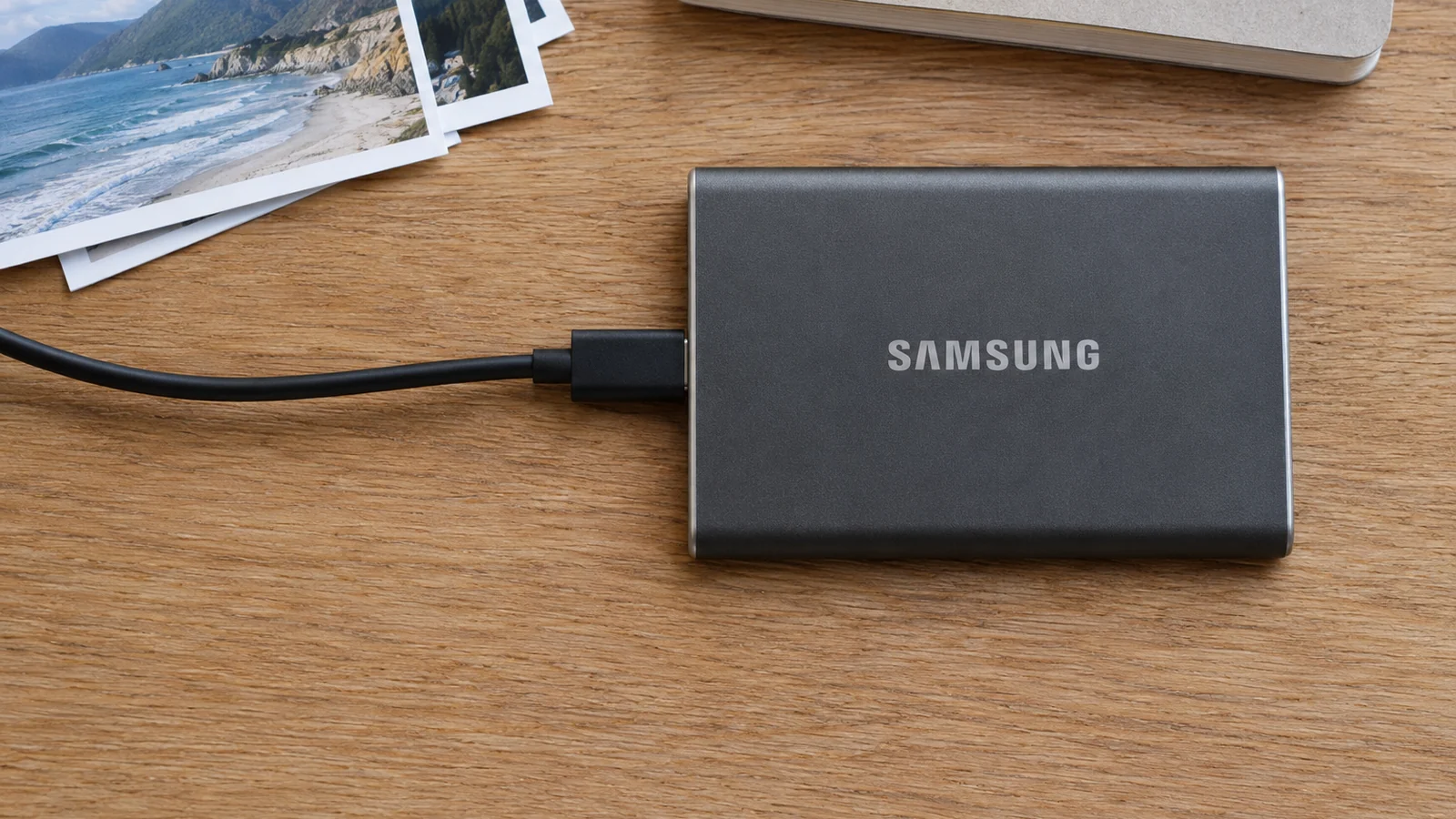
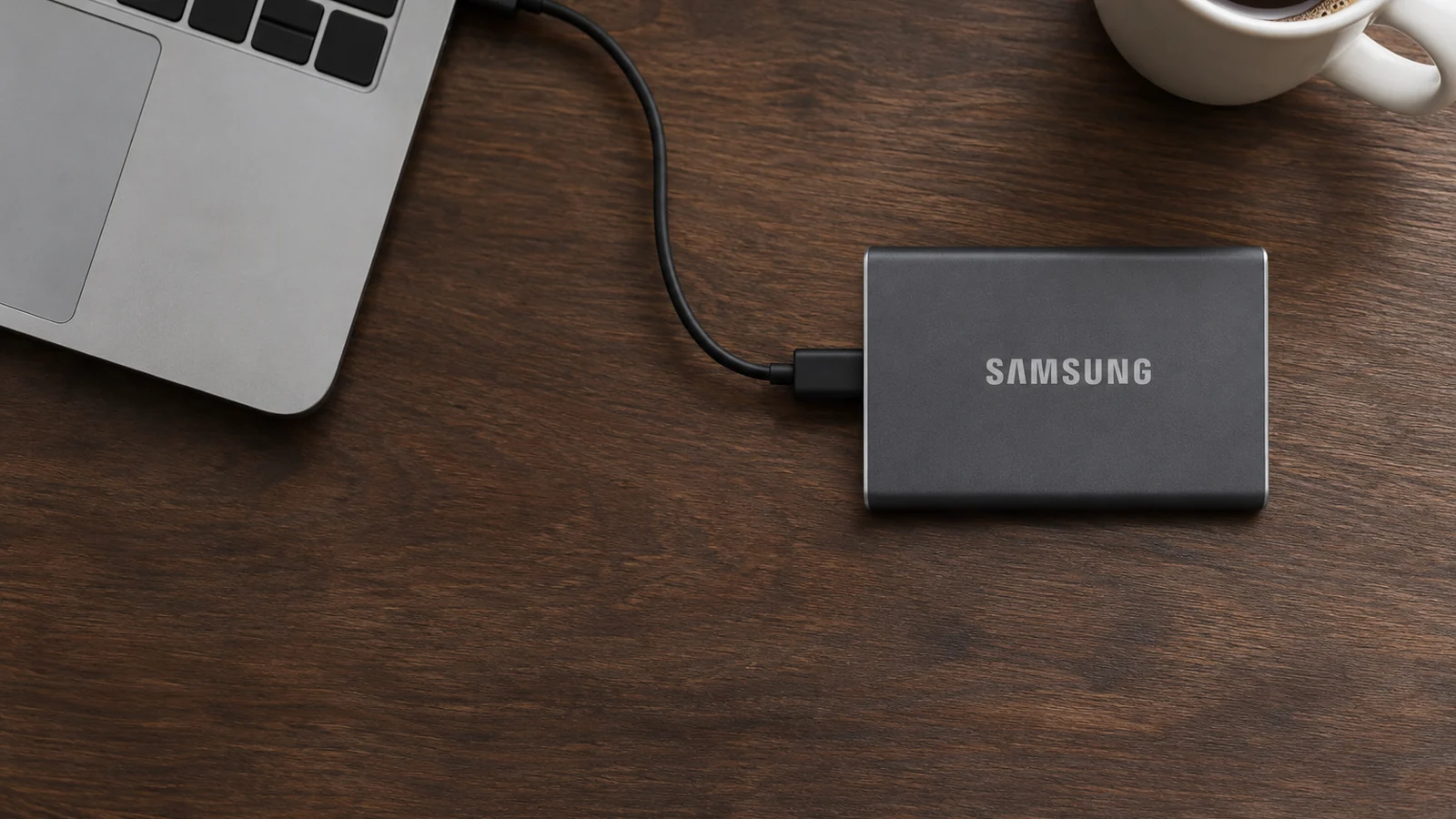
- Samsung Portable SSD T7, for everyday file storage and moving files between a Mac and a PC. It is a 10Gb/s drive, which is the USB speed a Mac gives it anyway.
- SanDisk Professional PRO-G40, if you edit video or move large files often. It is a Thunderbolt 3 drive, so it can use the Air's 40Gb/s ports.
- WD My Passport with USB-C, 5TB, for Time Machine. It is a spinning hard drive, slower than the SSDs, with room for Apple's rule on Airs up to 2TB.
This guide is AI-generated from Apple, Samsung, SanDisk and WD documentation and from attributed independent reviews. GearExplained did not test these drives. The product cards at the end link to Amazon, and GearExplained may earn a commission. That does not decide which products appear here.
What the MacBook Air's ports support
| MacBook Air | Ports, as Apple names them | Speeds Apple lists |
|---|---|---|
| Intel models, 2018 to 2020 | Thunderbolt 3 | No speed on Apple's port page, which says they take Thunderbolt 3 and USB-C devices |
| M1 (2020) and M2 (2022) | Two Thunderbolt / USB 4 | Thunderbolt 3 and USB 4 up to 40Gb/s, USB 3.1 Gen 2 up to 10Gb/s |
| M3 (2024) | Two Thunderbolt / USB 4 | Thunderbolt 3 and USB 4 up to 40Gb/s |
| M4 (2025) and M5 (2026) | Two Thunderbolt 4 (USB-C) | Thunderbolt 4 and USB 4 up to 40Gb/s |
Sources: Apple's port identification page and the tech specs for the M1, M2, M3, M4 and M5 13-inch models. Apple's pages for the 15-inch M2, M4 and M5 list the same ports as the 13-inch models from those years.
Apple's port page says the 2020 to 2024 Airs take devices that use a Thunderbolt 3 or USB-C cable, and the 2025 and later Airs take Thunderbolt 4, Thunderbolt 3 and USB-C. So a Thunderbolt 3 drive and a USB-C drive both plug into any of these Airs without an adapter. MacBook Airs from 2017 and earlier have no USB-C port. The same port page lists Thunderbolt or Thunderbolt 2 on the 2011 to 2017 models and Mini DisplayPort on the 2008 to 2010 models, so a USB-C drive needs a different cable or an adapter on those.
Why a 20Gbps USB 3.2 drive runs at 10Gbps on a Mac
Some portable SSDs sold as 20Gbps, such as Samsung's T9, use USB 3.2 Gen 2x2. None of Apple's MacBook Air spec pages above list that mode. The M1 and M2 pages list USB 3.1 Gen 2 at up to 10Gb/s alongside USB 4, and the M3, M4 and M5 pages list only Thunderbolt and USB 4.
Two reviewers measured what happens. B&H's hands-on review of the T9 used a MacBook Pro with M3 Max and reached "up to and around 1000MB/s," which the reviewer called "essentially what you'd expect from a USB 3.2 Gen 2 drive." The reviewer added that a Mac needs a Thunderbolt drive "to get above 10 Gb/s." Larry Jordan tested the T9 on an M2 Max Mac Studio and then an M4 Pro Mac mini, and wrote that the best Mac users can expect is about 950MB/s. Neither tested a MacBook Air, and nothing in Apple's MacBook Air specs points to a different result.
What that means for buying: on a MacBook Air, expect a 20Gbps USB 3.2 Gen 2x2 drive to run at about the speed of a 10Gbps drive. To go faster than 10Gb/s, buy a drive that says Thunderbolt or USB4.
How big a Time Machine drive to buy
Apple's Time Machine page says to use a storage device with at least twice your Mac's storage, and gives the example of a 2TB disk for a 1TB Mac. Time Machine keeps hourly backups for the past 24 hours, daily backups for the past month and weekly backups for older months, and deletes the oldest when the disk fills. A bigger disk keeps more history.
| Your MacBook Air's storage | Apple's minimum for the backup disk |
|---|---|
| 256GB | 512GB |
| 512GB | 1TB |
| 1TB | 2TB |
| 2TB | 4TB |
| 4TB, offered on the M5 models | 8TB |
The right column is Apple's twice rule applied to each size. The M5 spec page lists 512GB to 4TB, and the M4 page lists 256GB to 2TB.
Format matters as much as size. Apple's disk requirements say APFS is the preferred format and that Time Machine offers to erase and reformat a disk that isn't APFS when you choose it. It can't back up to a disk formatted for Windows without reformatting it. The whole APFS volume is reserved for backups. To keep other files on the same drive, Apple says to add a second APFS volume in Disk Utility, and the two volumes share the space. In that setup, Apple says the Time Machine volume should still be twice your Mac's storage.
If you already have an older Time Machine disk, check one thing. Apple says macOS 28 and later will support Mac OS Extended only on disks that aren't encrypted. Its conversion steps don't apply to encrypted Time Machine backup disks. For those, Apple's remaining option is to erase the disk as APFS, which deletes the old backups.
Samsung Portable SSD T7
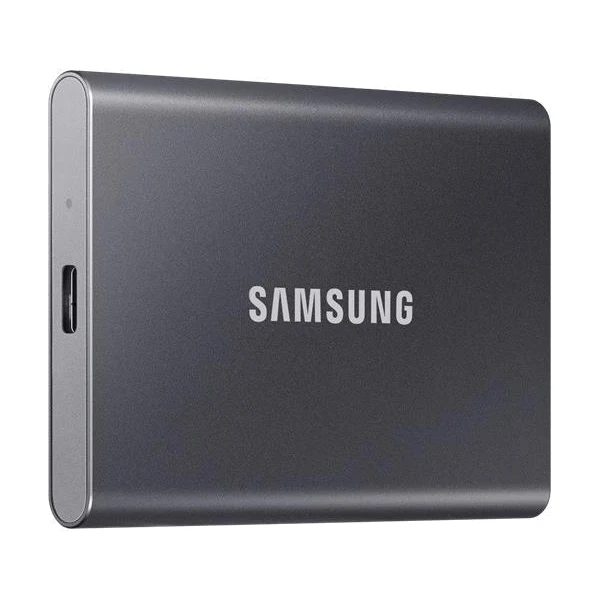
The T7 is a 10Gb/s drive. That is the USB 3.1 Gen 2 speed Apple lists for the M1 and M2 Airs, and about what reviewers measured from a 20Gbps T9 on Macs. Samsung's data sheet lists up to 1,050MB/s read and 1,000MB/s write over USB 3.2 Gen 2, 1TB, 2TB and 4TB capacities, and both a USB-C to C and a USB-C to A cable in the box. The C cable plugs straight into the Air.
It suits files you carry between computers. Samsung's FAQ says the drive ships formatted exFAT, which a Mac reads, and that it can be reformatted as APFS. Keep exFAT if the drive also goes to a Windows PC. Apple's Disk Utility guide describes ExFAT as compatible with Windows. Reformat to APFS if the drive stays with Macs.
The T7 can hold Time Machine backups too, after Time Machine reformats it, but at 4TB at most it covers Apple's rule only for Airs up to 2TB.
SanDisk Professional PRO-G40
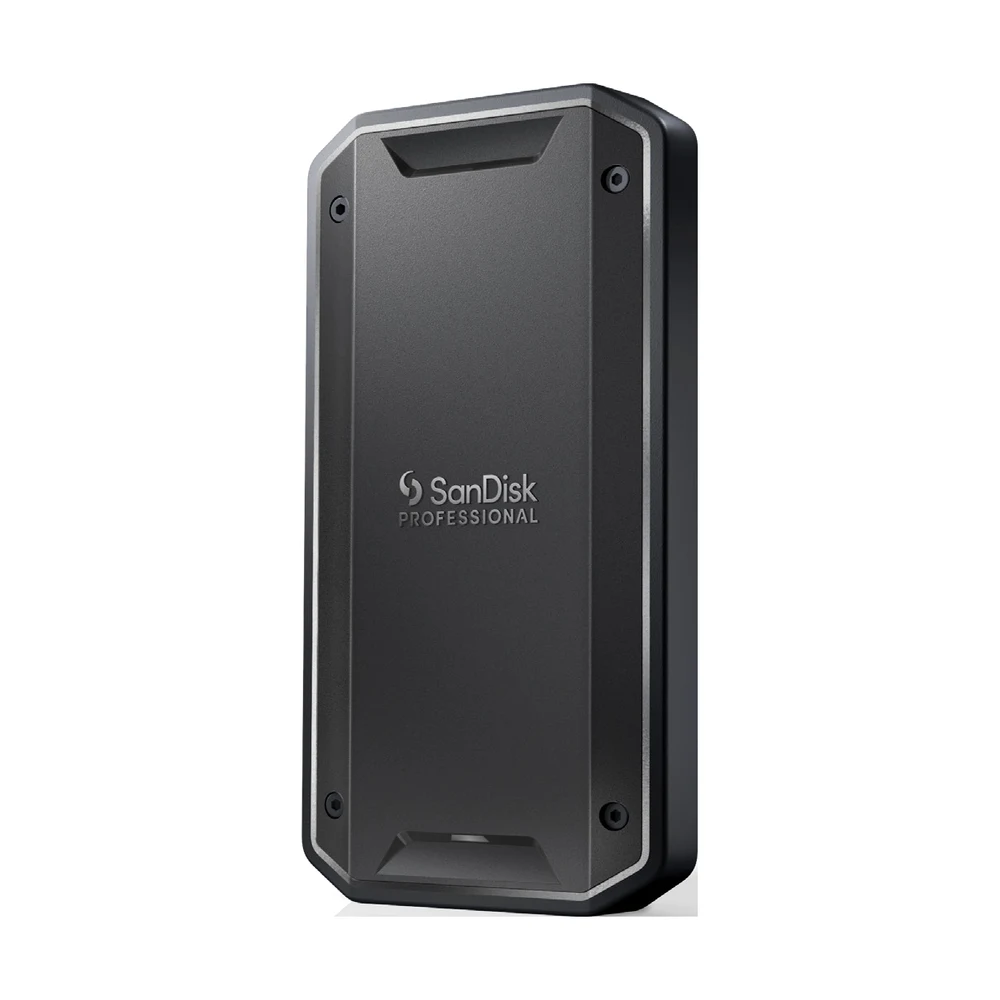
This is the pick when 10Gb/s is too slow, for example when you edit video straight off the drive or copy hundreds of gigabytes at a time. Its one USB-C port runs as Thunderbolt 3 on a Thunderbolt port and as 10Gb/s USB elsewhere. SanDisk's data sheet rates it at up to 3,000MB/s read and 2,500MB/s write over Thunderbolt 3, against 1,050MB/s and 1,000MB/s over USB. It lists macOS 10.13 or later as Time Machine compatible, 1TB, 2TB and 4TB models, IP68 dust and water resistance and drops up to 3 meters, based on SanDisk's own testing.
Amateur Photographer connected one to a 2022 MacBook Air with M2 over Thunderbolt 3 and measured about 2,800MB/s write and 2,600MB/s read in Blackmagic Disk Speed Test. The packaging of the reviewer's unit listed 2,700MB/s read and 1,900MB/s write, lower than the data sheet's figures.
Two limits. The box holds only a Thunderbolt 3 cable, with no USB-A cable for older computers, and SanDisk publishes no power figure. It lists an operating range of 5C to 35C.
WD My Passport with USB-C, 5TB
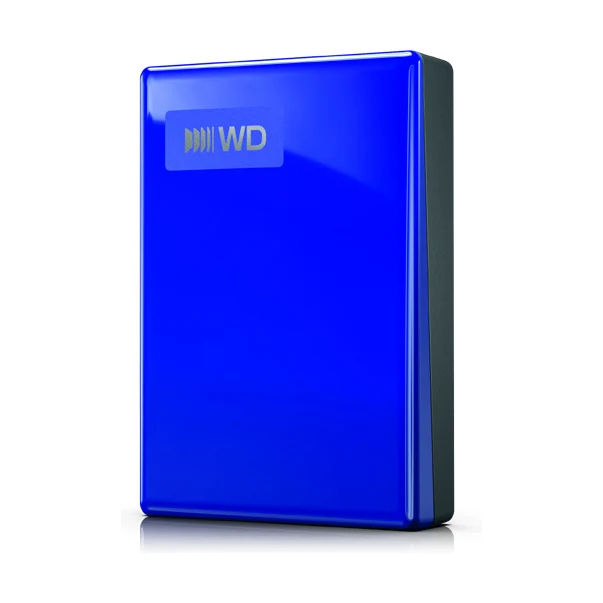
For Time Machine, capacity matters more than speed. Apple says Time Machine backs up only the changes since the last backup, so backups after the first one should be faster. This is a spinning hard drive in 1TB to 6TB sizes. The 5TB model covers Apple's twice rule for any MacBook Air with 2TB or less.
WD's data sheet for this version lists a USB-C port on the drive and a USB-C to USB-C cable in the box, so it needs no adapter on an Air. It ships formatted exFAT for macOS 11 and later. When you choose it in Time Machine, macOS offers to erase and reformat it. Be careful with the name. WD also sells a My Passport for Mac, which comes with a USB-A cable and a USB-C adapter, and a My Passport with a USB-A cable. Look for the USB-C to USB-C cable in the listing.
WD lists the interface as USB 3.2 Gen 1, which is 5Gb/s, and gives no transfer rate. That is half the T7's connection speed, so expect the first full backup to be slower than on either SSD. For a 4TB MacBook Air, Apple's rule asks for 8TB, which is more than the 6TB largest My Passport.
Three drives side by side
| Drive | Type | Connection | Listed speed | Sizes | Cable in the box |
|---|---|---|---|---|---|
| Samsung Portable SSD T7 | SSD | USB 3.2 Gen 2, 10Gb/s | 1,050MB/s read, 1,000MB/s write | 1TB, 2TB, 4TB | USB-C to C and USB-C to A |
| SanDisk Professional PRO-G40 | SSD | Thunderbolt 3, 40Gb/s, or USB 3.2 Gen 2 | 3,000MB/s read, 2,500MB/s write over Thunderbolt | 1TB, 2TB, 4TB | Thunderbolt 3 |
| WD My Passport with USB-C | Hard drive | USB 3.2 Gen 1, 5Gb/s | Not published | 1TB to 6TB | USB-C to C |
None of these is a 20Gbps drive, for the reason above. If a listing says USB 3.2 Gen 2x2, expect it to run like the T7 on a MacBook Air.
Setting up Time Machine on the drive
Copy anything you want to keep off the drive first, since Time Machine may offer to erase it. Then follow Apple's steps for a new backup disk:
- Connect the drive to the MacBook Air, and choose Allow if macOS asks.
- In the dialog that appears, click Options, then Set Up. Or open System Settings, click General, then Time Machine, click Add Backup Disk, select the drive and click Set Up Disk.
- Set the space limit and encryption options if the window offers them, then click Done.
Apple notes that backups don't run while the Mac is asleep or the disk is disconnected, and resume once both are available. A Time Machine disk you plug in only now and then backs up only now and then, so plug it in often.