Before you buy an SD card reader for a Mac, check whether the Mac already has a slot. Apple puts one on the 14-inch and 16-inch MacBook Pro and on Mac Studio, and leaves it off MacBook Air, MacBook Neo, iMac and Mac mini. If yours has a slot that takes UHS-II cards, a reader mostly helps with microSD, and Apple says an adapter lets the slot take those too.
If you do need a reader, three readers cover most cases:
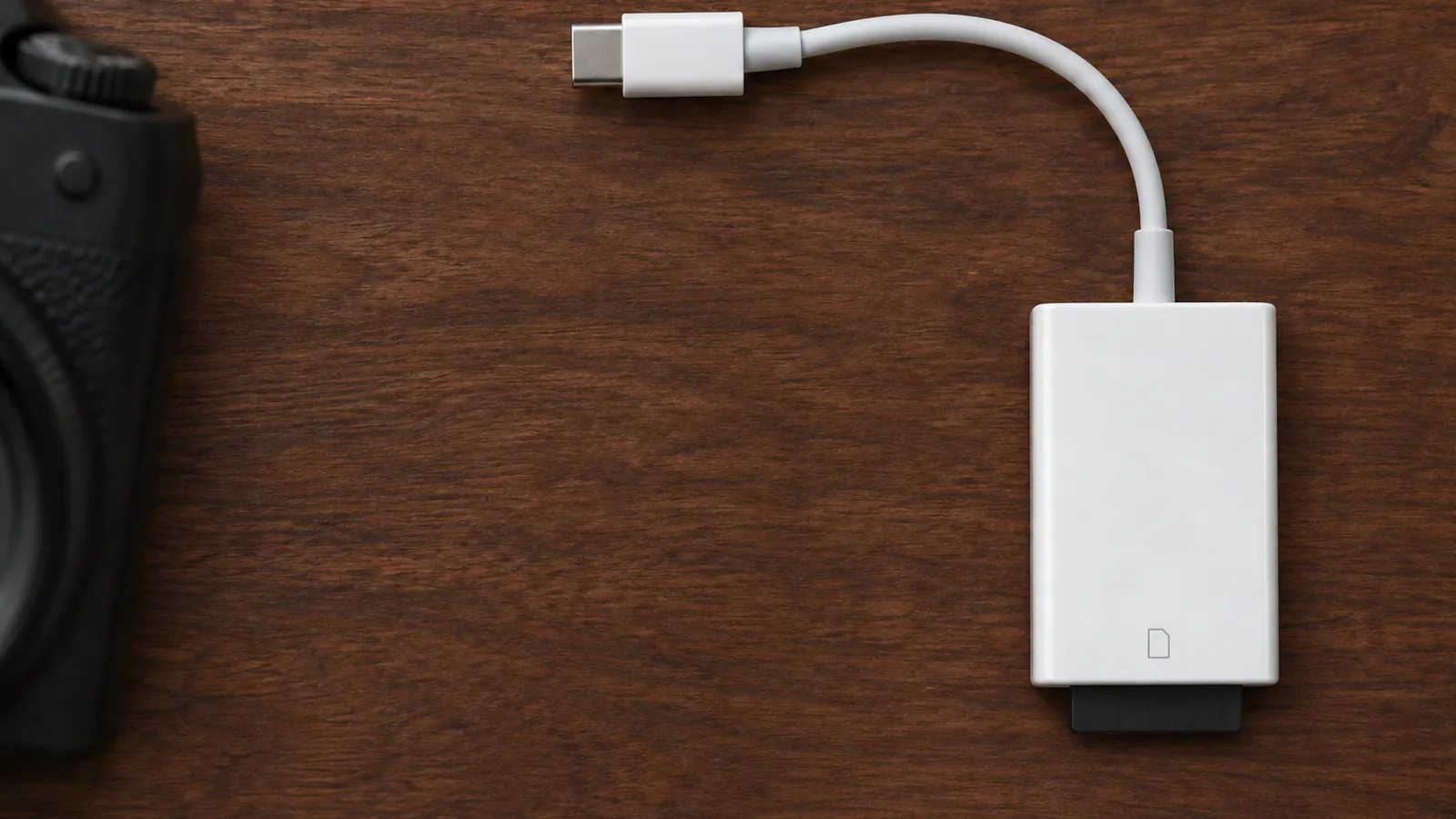
- Apple USB-C to SD Card Reader, for full-size SD cards from a camera, on any Mac with USB-C.
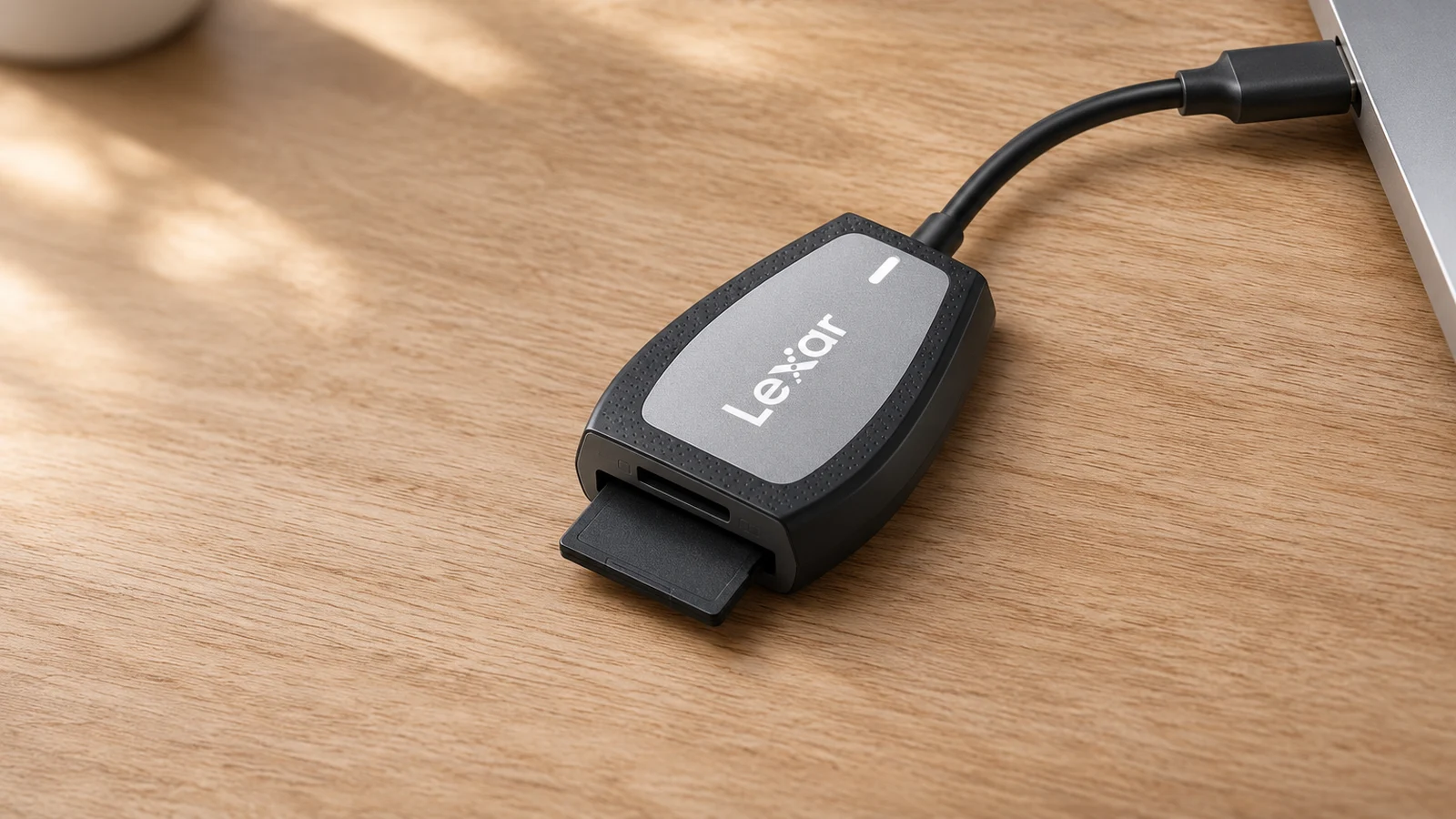
- Lexar Professional USB-C Dual-Slot Reader, if you also use microSD cards from a drone or action camera, with UHS-II support in both slots.
- Lexar Dual-Slot USB-A/C Reader, if the same reader has to work with an older computer that has only USB-A ports.
This guide is AI-generated from Apple's support articles and tech specs, Lexar's product pages and the SD Association's bus speed table. GearExplained did not test these readers. The product cards at the end link to Amazon, and GearExplained may earn a commission. That does not decide which products appear here.
Which Macs have an SD card slot
| Mac | Built-in SD slot | Where to plug in a reader |
|---|---|---|
| 14-inch MacBook Pro (M6, M5 Pro or M5 Max) | SDXC, UHS-II | No reader needed for SD. Any Thunderbolt port for a microSD reader. |
| 16-inch MacBook Pro (M5 Pro or M5 Max) | SDXC, UHS-II | Same as the 14-inch |
| Mac Studio (M5 Max or M5 Ultra) | SDXC, UHS-II, on the front | No reader needed for SD |
| MacBook Air (M5) | None | Either Thunderbolt 4 port |
| MacBook Neo | None | The left port, USB 3 up to 10Gb/s. The right port is USB 2. |
| iMac (M6) | None | Any Thunderbolt / USB 4 port |
| Mac mini (M6 or M5 Pro) | None | Either front USB-C port, up to 10Gb/s, or a Thunderbolt port on the back |
Sources: Apple's SD card slot article, its port guide, and tech specs for the MacBook Pro, Mac Studio, MacBook Air, MacBook Neo, iMac and Mac mini.
Apple's slot article covers older Macs too. The MacBook Pro from 2011 through 2015, the Mac mini from 2011 through 2014, the 13-inch MacBook Air from 2013 through 2017, and the 21.5-inch and 27-inch iMac from 2010 on all have an SDXC slot. UHS-II support is limited to Mac Studio from 2022, MacBook Pro from 2021, the 2020 iMac and iMac Pro. The other slots take cards up to UHS-I.
Apple's slot takes SD, SDHC and SDXC cards, plus MMC. It doesn't support SDIO cards, and Apple warns against cards thicker than 2.1mm, which can damage the slot. MicroSD and miniSD cards need an adapter.
The MacBook Neo port matters more than the reader
MacBook Neo has two USB-C ports that look the same and behave differently. Apple's spec page lists one as USB 3, up to 10Gb/s, and the other as USB 2, up to 480Mb/s. Its tour of the laptop says the left port is the USB 3 one and suggests charging from the right port to keep the left one free.
That choice decides your copy speed. 480 megabits a second works out to 60MB/s before overhead, our arithmetic from Apple's figure. The SD Association lists 104MB/s as the UHS-I bus maximum and 312MB/s for UHS-II. In the right-hand port, a UHS-I card that can use its full 104MB/s bus waits on the port. Plug the reader into the left port and the charger into the right.
Every other current Mac in the table lists at least 10Gb/s on the ports named. That is about 1,250MB/s, four times the 312MB/s UHS-II bus maximum, so on those Macs the port isn't what holds a reader back.
Apple USB-C to SD Card Reader
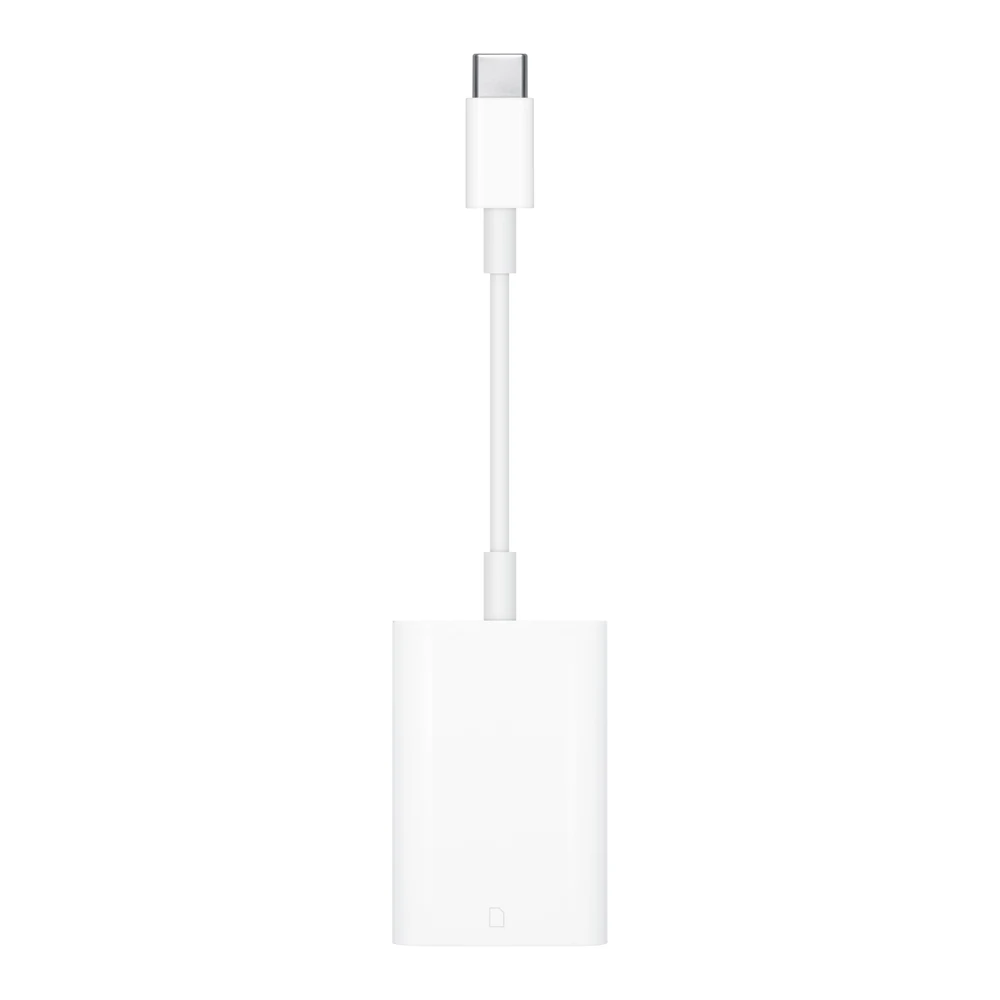
This is the simplest pick for a Mac without a slot if your camera uses full-size SD cards. Apple's store page lists it for the current MacBook Air, MacBook Neo, iMac and Mac mini, along with older Macs going back to the 12-inch MacBook. Apple says it moves photos and video at UHS-II speeds, but gives no MB/s figure.
Apple's user guide lists SD, SDHC and SDXC cards up to UHS-II speeds, and MMC and MMC Plus cards. Mini and microSD cards need an adapter that isn't included. It has one slot, so it can't read a microSD card and an SD card at the same time.
On a Mac, the guide's import steps are to insert the card, connect the reader, then open Photos and click Import All New Photos, or select items and click Import Selected.
Lexar Professional USB-C Dual-Slot Reader
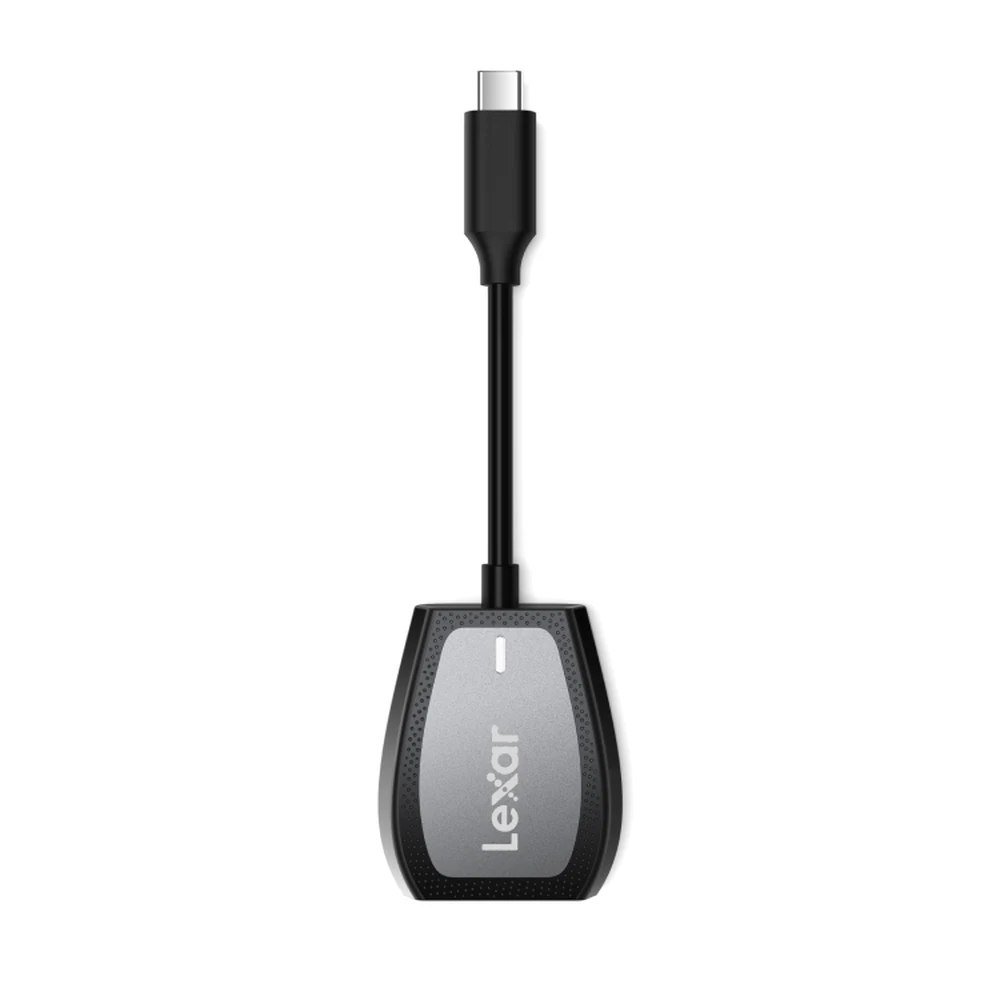
Pick this one if you use microSD cards as well as SD, or if your MacBook Pro already reads SD and you only need microSD. Lexar's page lists an SD slot and a microSD slot, both for UHS-II cards and backward compatible with UHS-I. That makes it the only reader here that runs a microSD card at UHS-II speed without an adapter.
Lexar lists up to 312MB/s read with UHS-II cards and up to 170MB/s with UHS-I cards, and says results vary with the system and the card. The UHS-I figure is above the SD Association's 104MB/s UHS-I bus maximum, and Lexar doesn't say which cards reach it. The 312MB/s figure matches the SD Association's UHS-II bus maximum. The reader uses a USB 3.2 Gen 1 interface and has a built-in USB-C cable and an activity light.
Lexar's system list says Mac OS X 10.8 or later and Windows 10, 8, 7, Vista and XP, with a USB-C port. It doesn't say whether both slots can be read at once.
Lexar Dual-Slot USB-A/C Reader
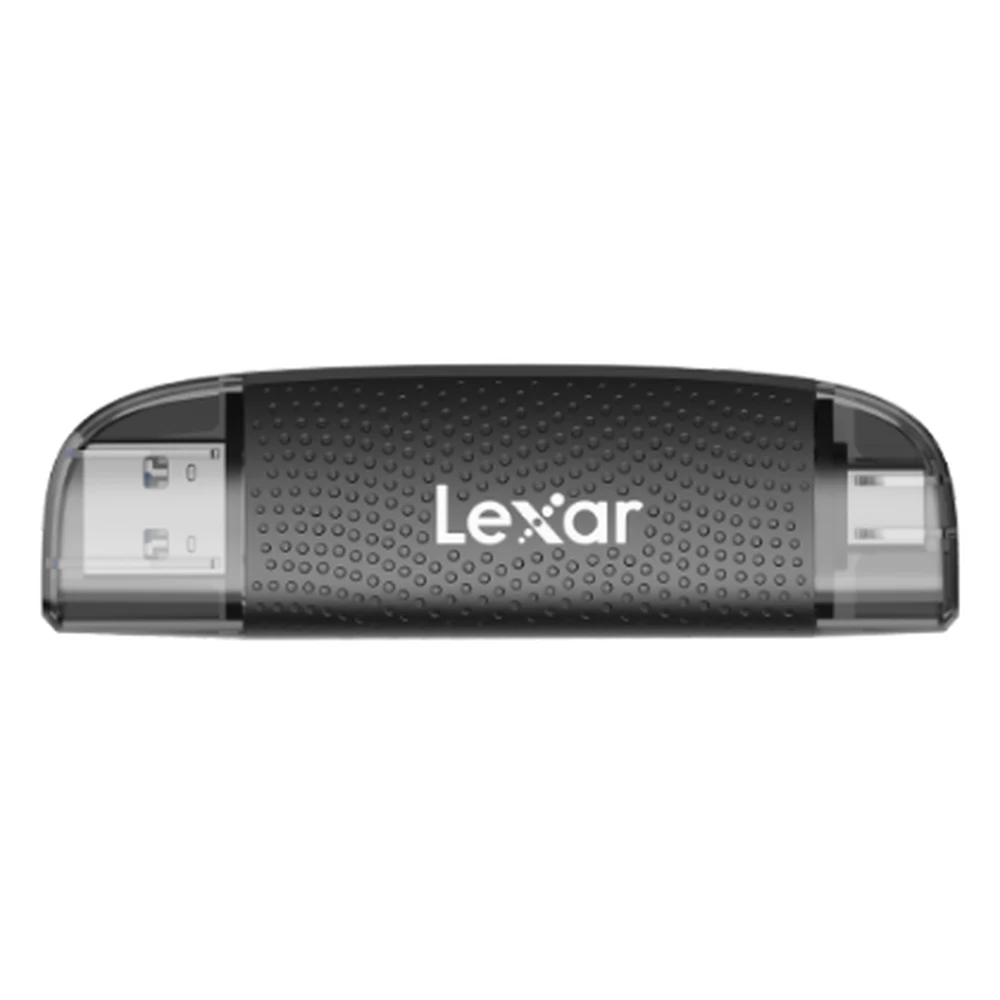
This is for people who move cards between a current Mac and an older Mac or PC with only USB-A ports. It has a USB-A plug at one end, a USB-C plug at the other, and an SD slot and a microSD slot. Lexar's product sheet says both slots can transfer at the same time and that it needs no drivers.
It is a UHS-I reader. The sheet lists SD, SDHC, SDXC, microSD, microSDHC and microSDXC cards with UHS-I support, and doesn't mention UHS-II. Lexar lists up to 205MB/s and mentions that figure alongside its SILVER PLUS cards. That is about double the SD Association's 104MB/s UHS-I bus maximum, and Lexar doesn't explain how the reader goes past it, so plan on ordinary UHS-I cards running at or below 104MB/s.
The sheet lists Mac OS 10.8 or later and Windows 11 back to XP, with a USB 2.0 or newer port. On a USB 2 port, including MacBook Neo's right-hand port, it is limited to that port's speed.
Three readers side by side
| Reader | Plug | Card slots | Card bus | Listed speed |
|---|---|---|---|---|
| Apple USB-C to SD Card Reader | USB-C on a short cable | SD. microSD with an adapter. | UHS-II | No MB/s figure |
| Lexar Professional USB-C Dual-Slot Reader | USB-C on a built-in cable | SD and microSD | UHS-II | Up to 312MB/s with UHS-II cards |
| Lexar Dual-Slot USB-A/C Reader | USB-A and USB-C | SD and microSD | UHS-I | Up to 205MB/s, card-dependent |
We left out the many unbranded readers in the shopping results for this search, because this guide includes only readers with maker documentation we could check. A listing that says "for Mac" doesn't tell you which card bus it supports.
Using a card on a Mac
On Mac laptops with Apple silicon, a new SD card has to be approved before macOS will use it. Apple's accessories article says a new or unknown USB accessory, Thunderbolt accessory or SD card brings up an alert asking you to allow it. If you click Don't Allow, the Mac won't recognize it and will ask again next time. If the Mac is locked, unlock it first. The default is to ask for new accessories only, and you can change it under System Settings, Privacy & Security, Accessories.
Apple's other card advice from its slot article and Mac User Guide:
- Eject the card in Finder before pulling it out, and don't remove it while the Mac is asleep. Apple says that can cause data loss.
- If a card doesn't mount, take it out and insert it again. Apple says a card inserted too slowly or too quickly sometimes won't mount properly.
- If you see "cannot be modified," the lock slider on the side of the card may be in the locked position.
- Inserting a card formatted by a digital camera does the same thing as connecting the camera to the Mac.
Which to buy
Look at your Mac first. A MacBook Pro from 2021 on or a Mac Studio from 2022 on already reads UHS-II SD cards, so buy a reader only if you use microSD, and then the Lexar Professional USB-C Dual-Slot Reader is the one with a UHS-II microSD slot. For a MacBook Air, MacBook Neo, iMac or Mac mini and a camera that uses SD cards, Apple's USB-C to SD Card Reader is the plain choice. If you also shoot on microSD, the Lexar Professional reader saves you an adapter. Choose the Lexar Dual-Slot USB-A/C Reader only if you need the USB-A plug. On MacBook Neo, use the left port.