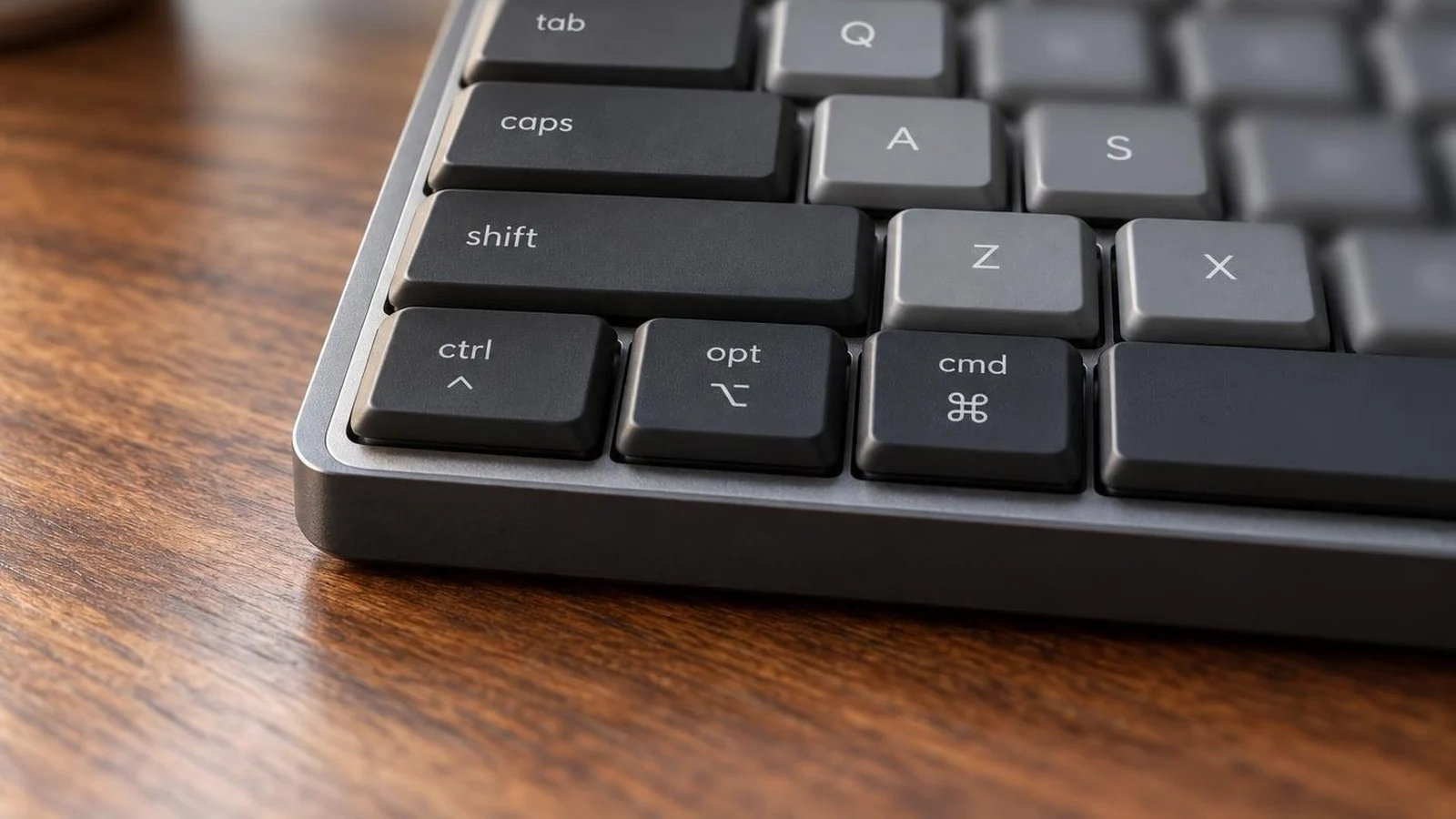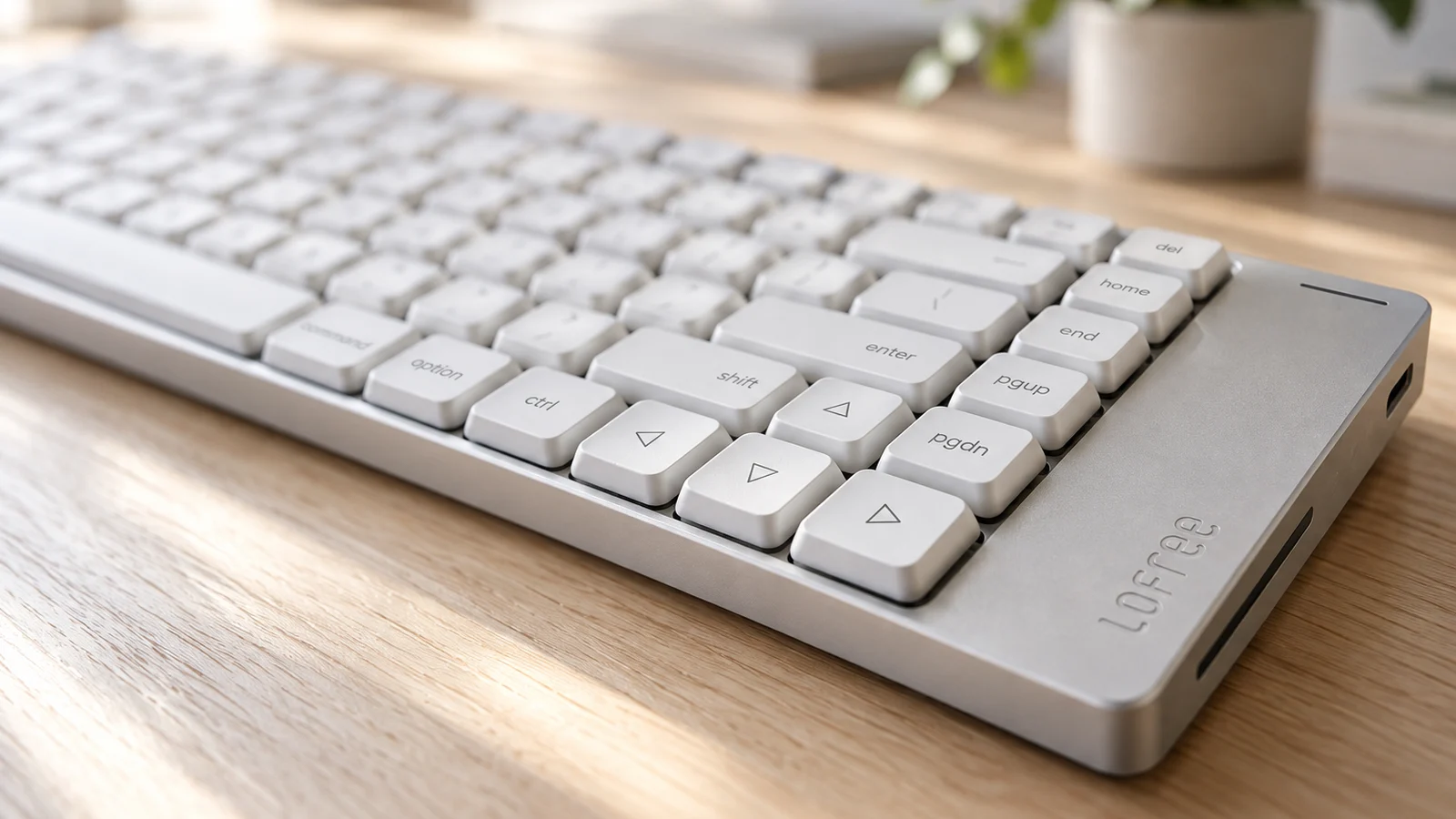
Almost any Bluetooth keyboard will type on a Mac. RTINGS puts it this way: virtually all keyboards are at least partly compatible with macOS, with most keys working out of the box. What separates a good Mac keyboard from a merely working one is narrower. Does it have Touch ID, does it put command and option where your fingers expect them, how many computers can it switch between, and does it need a USB port your Mac may not have?
Here are four picks, drawn from RTINGS's tested list for Mac and checked against each maker's own documentation:
- Apple Magic Keyboard with Touch ID and Numeric Keypad if you have one Mac with Apple silicon and want to unlock it with a fingerprint.
- Logitech MX Keys S for Mac if you switch between a Mac and an iPad or a second Mac and want backlit keys.
- Keychron B6 Pro if one keyboard has to serve a Mac and a Windows PC, with a switch for each.
- Logitech Pebble Keys 2 K380s for a small, cheap keyboard that runs for years on two AAA batteries.
This guide is AI-generated from Apple, Logitech and Keychron documentation and from lab reviews by RTINGS. GearExplained did not test these keyboards. The product cards at the end link to Amazon, and GearExplained may earn a commission. That does not decide which keyboards appear here.
What decides the fit on a Mac
Your Mac's chip, if you want Touch ID. Apple lists the USB-C Magic Keyboard with Touch ID and Numeric Keypad for a "Mac with Apple silicon using macOS 15.1 or later," and its compatibility list names only Apple silicon models. The Magic Keyboard with Touch ID without the keypad has the same requirement. If you have an Intel Mac, the plain USB-C Magic Keyboard lists any Mac on macOS 15.1 or later. RTINGS's list still says the USB-C model needs macOS 11.4 or later. Apple's current tech specs page says 15.1.
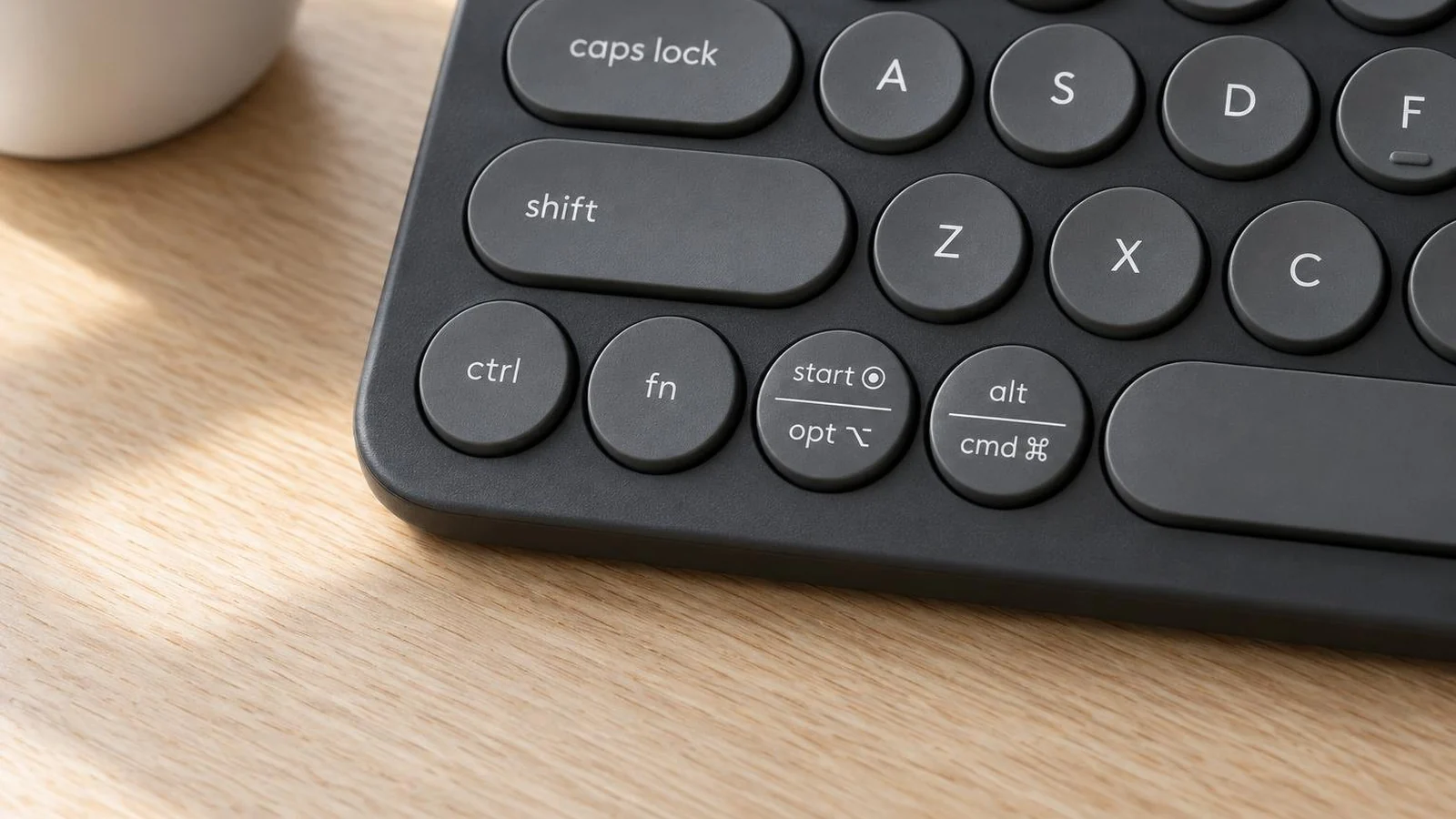
Where command and option sit. On a Mac the key next to the space bar is command, then option, then control. The Apple and Logitech MX Keys S for Mac keyboards are printed for that order. The Keychron and the Pebble Keys 2 have keycaps labeled for both systems and change what the keys do depending on the mode, which matters if the same keyboard also goes to a Windows PC.
Bluetooth or a receiver. RTINGS points out that newer Macs tend to lack USB-A ports, which makes Bluetooth the easy choice. There is one catch Logitech spells out on its MX Keys S for Mac page. With FileVault turned on, Bluetooth devices may not connect before you log in, and Logitech advises its Logi Bolt receiver, sold separately, if you use FileVault. The Pebble Keys 2 guide says that receiver goes in a USB-A port.
How many devices. RTINGS says Apple's keyboard pairs with one device at a time and suggests Apple's Universal Control for sharing it across Macs. The other three picks store three Bluetooth connections and switch between them with a key.
| Keyboard | Layout | Mac legends | Wireless | Devices | Power | Backlight | macOS listed |
|---|---|---|---|---|---|---|---|
| Apple Magic Keyboard, Touch ID and keypad | Full size, 16.48 in wide | Mac only, Touch ID key | Bluetooth | 1 | Battery, about a month | Not listed by Apple | 15.1 or later, Apple silicon |
| Logitech MX Keys S for Mac | Full size, 430 mm wide | Mac only | Bluetooth; Bolt receiver sold separately | 3 | Battery, USB-C charging | Yes | 10.15 or 11, depending on the Logitech page |
| Keychron B6 Pro | Full size, 429 mm wide | Mac and Windows on the same keycaps | Bluetooth or USB-A 2.4 GHz receiver, adapter included | 3 plus receiver | Battery, up to 8 months | No | Not stated by version |
| Logitech Pebble Keys 2 K380s | Compact, 279 mm wide | Mac and Windows on split keys | Bluetooth; Bolt receiver sold separately | 3 | 2 AAA batteries, up to 36 months | No | 11 or later |
1. Apple Magic Keyboard with Touch ID and Numeric Keypad: Touch ID on a desktop Mac
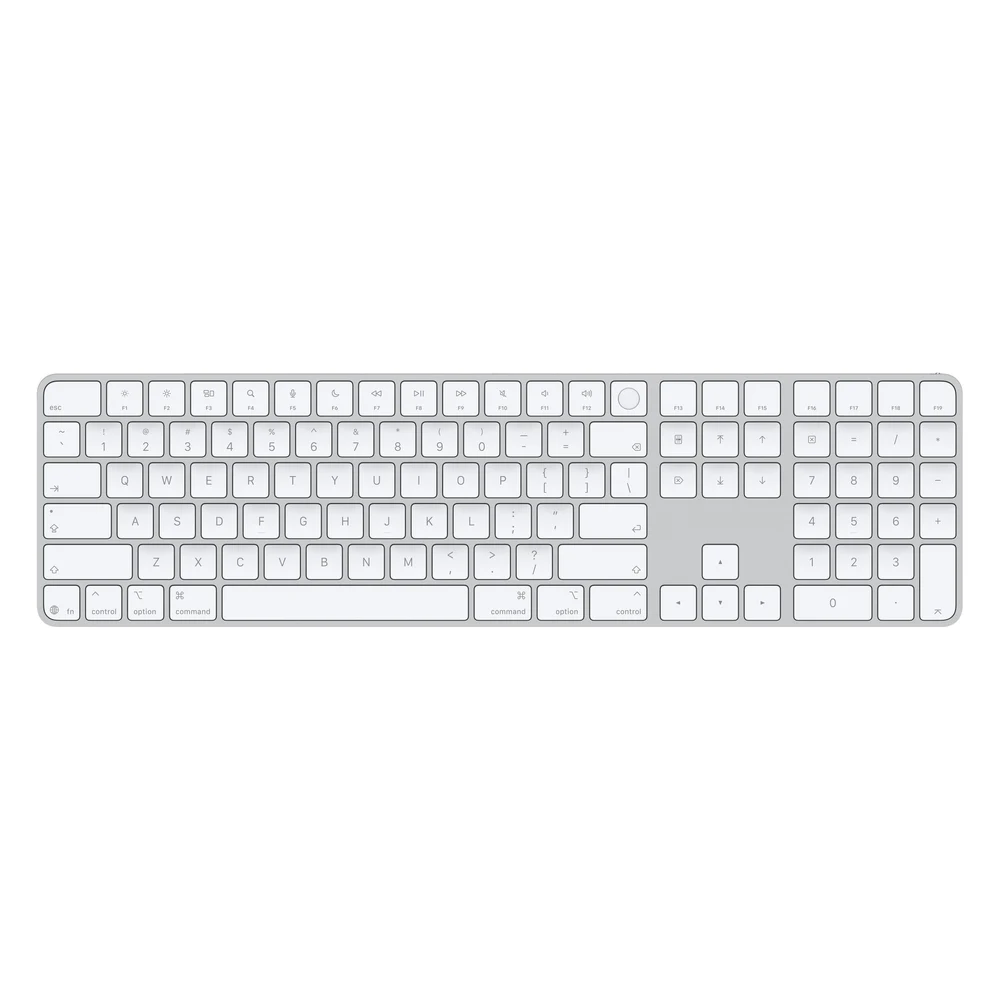
This is RTINGS's top pick for Mac. RTINGS found the thin aluminum chassis very stiff, the typing quality impressive and the keys stable. The feature no other keyboard here has is Touch ID, which signs you in and approves purchases with a fingerprint.
That feature sets the requirement. Apple's tech specs list a Mac with Apple silicon running macOS 15.1 or later. RTINGS adds that Touch ID does not work with iPads or iPhones. Apple pairs the keyboard by connecting its USB-C cable to the Mac and rates the battery at about a month or more between charges.
The tradeoff is that it pairs with one device at a time, according to RTINGS. That suits a desktop Mac or a MacBook that stays docked. If you move between computers, you will be re-pairing it or relying on Universal Control.
Two version notes. RTINGS tested the older Lightning model and has not tested the USB-C one. And on August 25, 2026, Apple released revised models whose keys use symbols in place of words such as tab, caps lock, return, shift and delete. 9to5Mac reports they otherwise appear the same. The US English white-key version is part MJM64LL/A on Apple's store.
2. Logitech MX Keys S for Mac: backlit keys and three devices
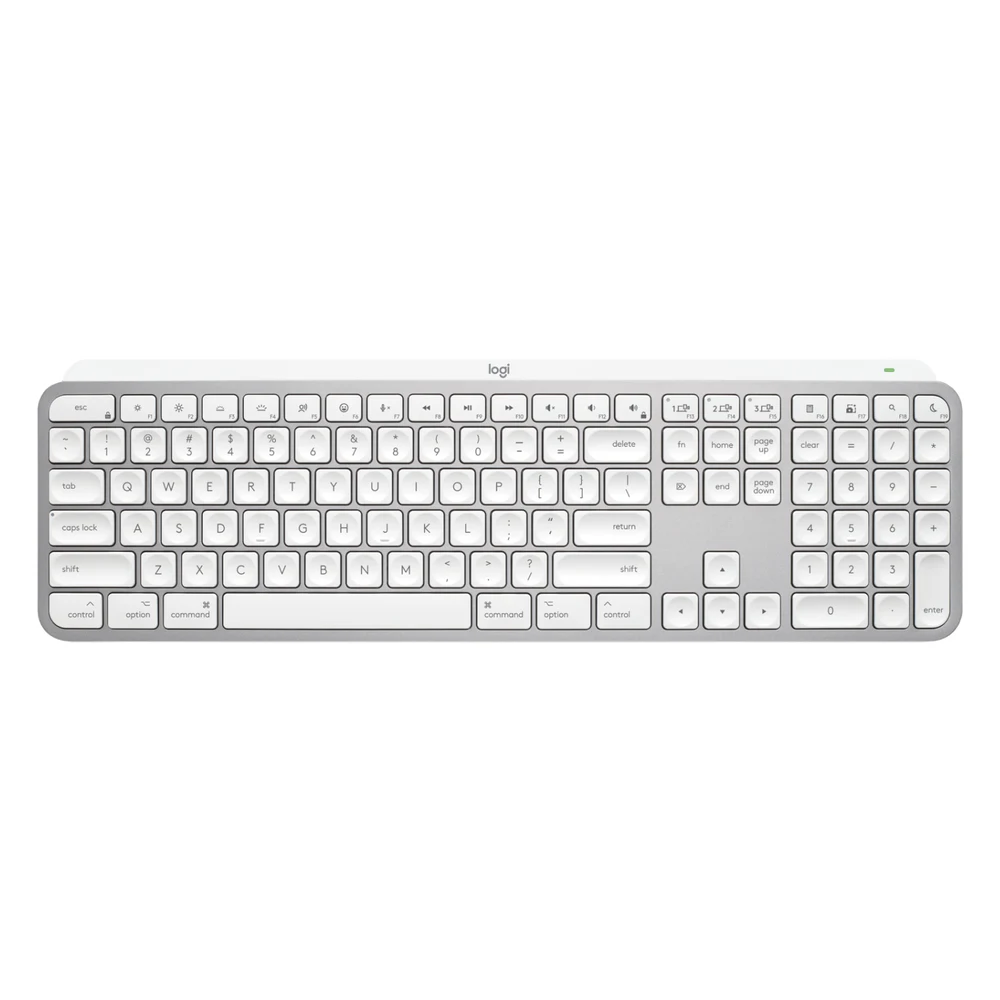
The MX Keys S for Mac is the Mac-labeled version of the MX Keys S, RTINGS's mid-range pick. RTINGS tested the regular model and says the Mac version is identical apart from its Mac-specific legends. It found impressive build quality, a low profile that is comfortable without a wrist rest and dished keycaps that help center your fingers.
It pairs with up to three devices over Bluetooth Low Energy, and Logitech says you can switch between Mac computers and iPads with a button. The backlight turns on as your hands approach and adjusts to the room. That costs battery. Logitech's specification page rates it at about 6 to 10 days with the backlight on, depending on how bright the room is, and RTINGS cites five months with it off. It charges over USB-C.
The receiver is the detail to check. Logitech lists a USB-C charging cable in the box and calls the Logi Bolt receiver not included. RTINGS says the regular MX Keys S does include one. If you use FileVault, Logitech recommends buying the receiver, since Bluetooth devices may not connect before you log in. The regular model's dual Windows and Mac legends are the cost of getting one in the box, and RTINGS calls that version a better choice for Mac owners who want a more reliable connection and do not mind a USB-A adapter.
Logitech's documents disagree slightly on macOS support. The store page lists macOS 10.15 or later and the support specification page says macOS 11 or later. Logi Options+ adds backlight settings and Smart Actions shortcuts, and Logitech Flow lets the keyboard follow a Flow-enabled Logitech mouse between computers.
3. Keychron B6 Pro: one keyboard for a Mac and a PC
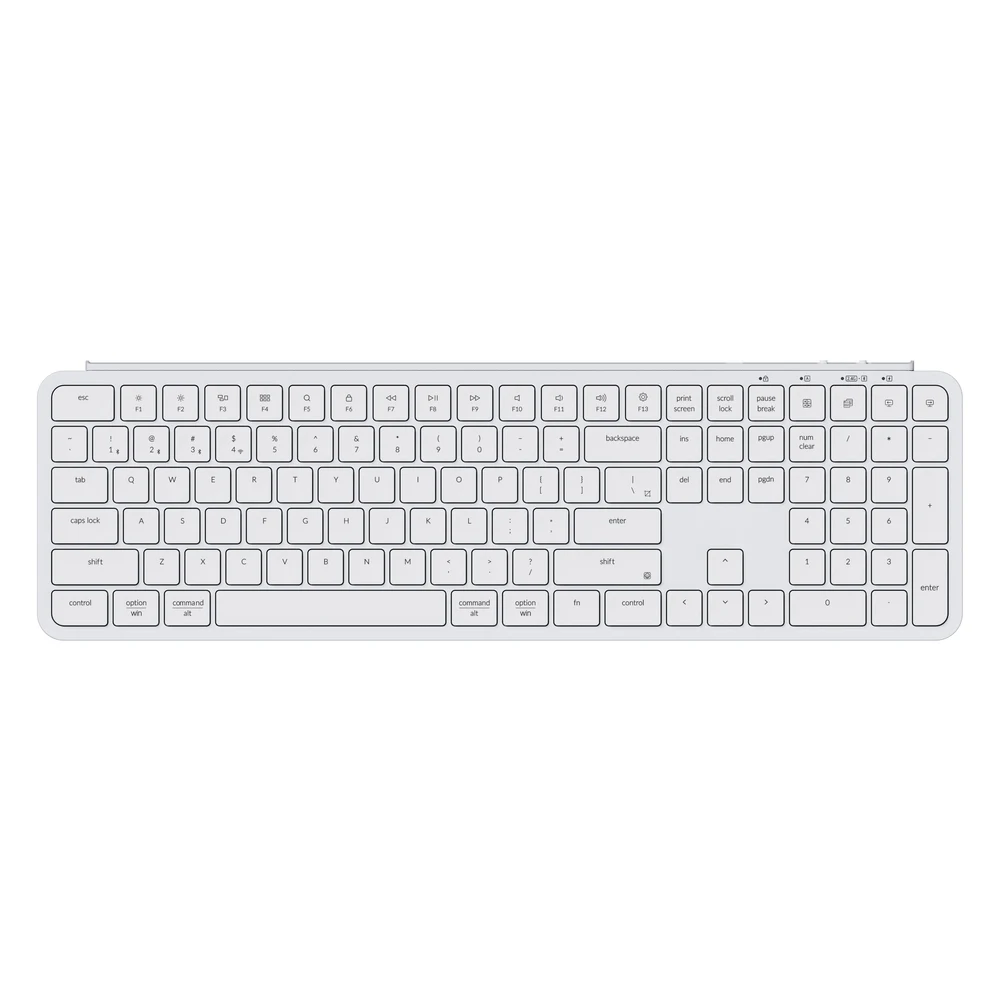
The B6 Pro is RTINGS's budget pick for Mac, and it is the most flexible about what it connects to. Keychron's quick start guide shows two switches on the top edge. One picks Bluetooth, cable or the 2.4 GHz receiver. The other picks Mac or Windows. Keychron's box contents list a USB-A receiver and a USB-A to USB-C adapter, so it also works with a Mac that has only USB-C ports. Its key combinations select three Bluetooth devices with Fn plus 1, 2 and 3, and a long press of Fn plus 4 pairs the receiver. The modifier keycaps are labeled option and win, and command and alt, so they read correctly in either mode.
RTINGS found great typing quality, extremely quiet keys and a low profile that is comfortable without a wrist rest. It also found the materials somewhat cheap, with noticeable deck flex, flatter keycaps and slightly more wobble than the Logitech. There is no backlight. RTINGS notes that extends battery life, and Keychron rates the battery at up to 8 months. Keychron Launcher, a web app, remaps keys and records macros, and Keychron says it works on macOS.
Choose it over the Logitech if a Windows PC shares your desk or you want the receiver in the box. Skip it if you type in the dark.
4. Logitech Pebble Keys 2 K380s: small, quiet and on AAA batteries
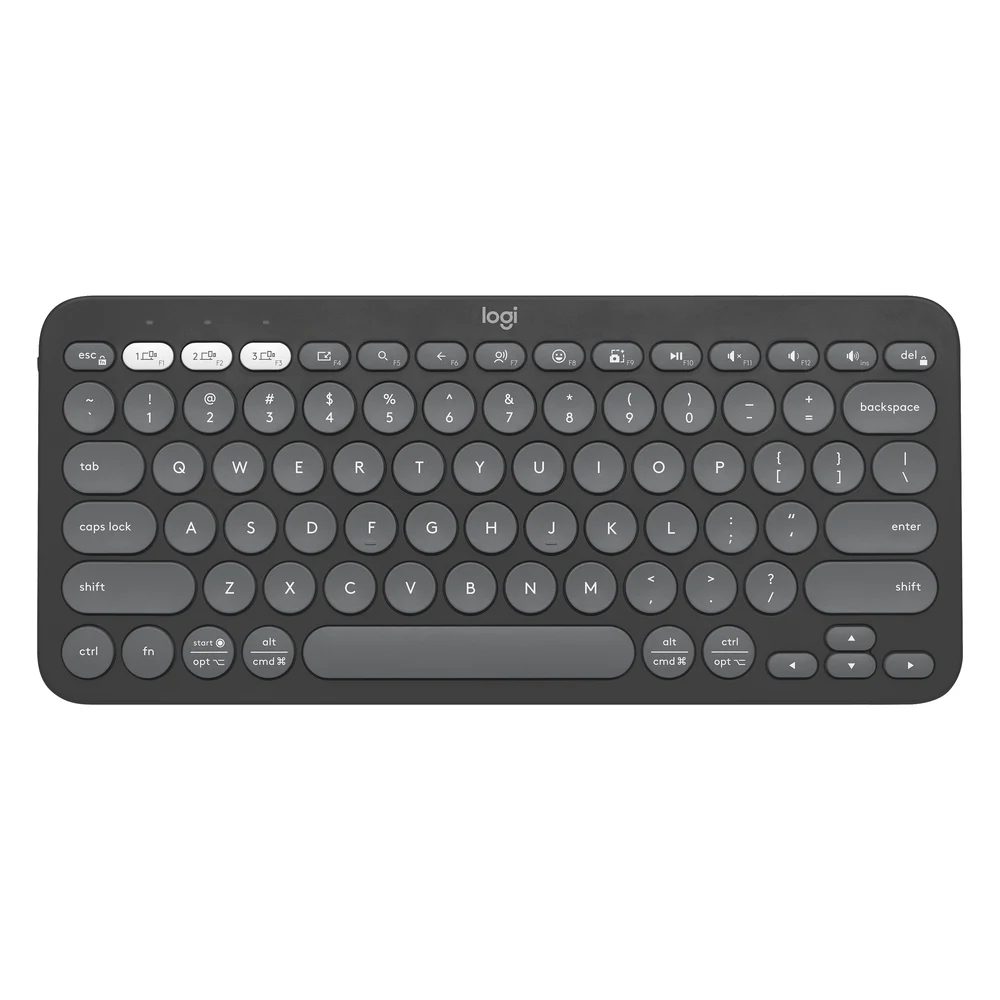
The Pebble Keys 2 K380s is RTINGS's cheap pick for Mac. It is a compact board with round keys, three Easy-Switch keys for three devices and two AAA batteries that Logitech rates at up to 36 months.
Its Mac handling is automatic. According to Logitech's setup guide, over Bluetooth it detects the operating system of the selected device and remaps its split modifier keys. If detection fails, or you use a Bolt receiver, holding Fn and O for three seconds sets it to macOS. Logitech lists macOS 11 or later.
RTINGS found it very quiet with good typing quality, but the spacing is cramped next to a full-size keyboard, and the round keycaps and short travel take some getting used to. It has no backlight and no number pad.
If you want mechanical switches
RTINGS's mechanical pick for Mac is the NuPhy Node Series, which comes in 75% and full-size versions with low or standard profiles. RTINGS tested a low-profile model and found excellent build and typing quality and Mac-specific keycap legends. NuPhy's Node 100 Low-Profile guide shows a Mac and Windows mode switch, three Bluetooth slots and a 2.4 GHz receiver.
Which wireless keyboard to buy for a Mac
If you have one Mac with Apple silicon and want Touch ID, buy the Magic Keyboard with Touch ID. Get the version without the numeric keypad if you want it smaller, since Apple lists the same requirement for both.
If you switch between a Mac and an iPad, or work in a dim room, buy the MX Keys S for Mac. Add a Logi Bolt receiver if you use FileVault.
If a Windows PC shares the keyboard, the Keychron B6 Pro has a switch for each system and a receiver in the box.
If you want something small and cheap that you will rarely think about, the Pebble Keys 2 K380s runs on AAA batteries and sets itself up for macOS.
Sources
- RTINGS.com, best keyboards for Mac and reviews of the Magic Keyboard with Touch ID and Numeric Keypad, MX Keys S, Keychron B1/B6 Pro, Pebble Keys 2 K380s and NuPhy Node Series
- Apple, tech specs for the Magic Keyboard with Touch ID and Numeric Keypad, Magic Keyboard with Touch ID and Magic Keyboard, and the US English white-key listing
- 9to5Mac, Apple releases new Magic Keyboards with one notable change
- Logitech, MX Keys S for Mac, its getting started guide and specification, and Pebble Keys 2 K380s and its getting started guide
- Keychron, B6 Pro, its key combinations and quick start guide
- NuPhy, Node 100 Low-Profile quick guide
All sources were checked on October 16, 2026.