An iPad Pro will take almost any mechanical keyboard. It pairs over Bluetooth from Settings, and Apple's USB-C support page lists keyboards among the devices the port accepts. What separates one board from another on an iPad is narrower: whether the maker lists iPadOS or iOS at all, which of its connections work without an adapter, what the keys are labeled, and what happens to the Globe key that Apple's own keyboards use for iPad shortcuts.
Four keyboards whose makers list iPadOS or iOS, each for a different buyer:
- NuPhy Air75 V3 to carry with an iPad Pro. It is the only mechanical keyboard RTINGS names in its iPad list, and its USB-C to USB-C cable fits the iPad's port.
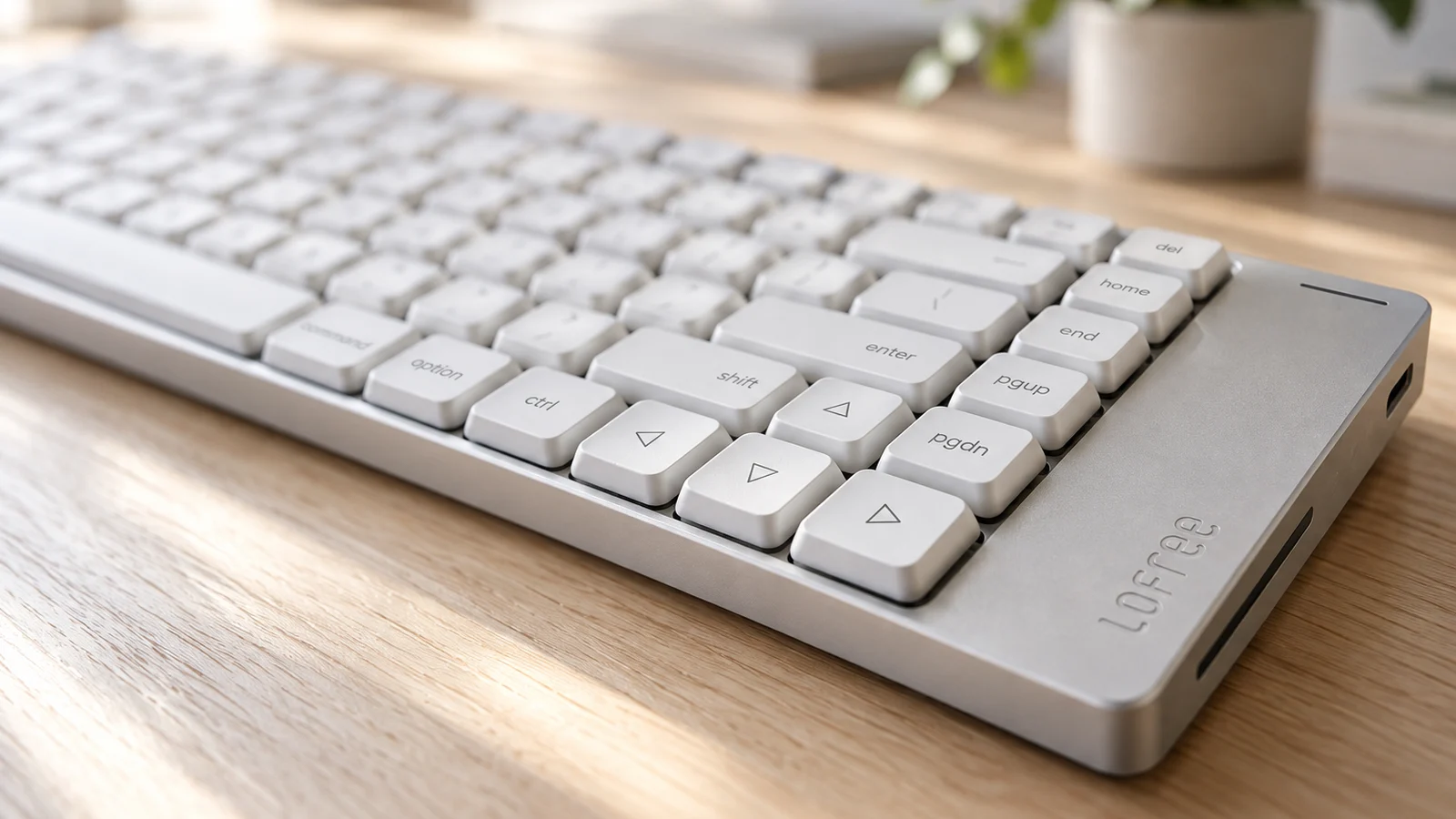
- Lofree Flow 2 84 for a desk, with iPadOS named in Lofree's compatibility list and what RTINGS calls superb typing quality.
- Logitech MX Mechanical Mini for Mac for Mac-style keys and one-button switching between an iPad and a Mac.
- Logitech MX Mechanical for a full-size layout with a number pad.
This guide is AI-generated from Apple, Logitech, NuPhy and Lofree documentation, RTINGS reviews, and walkthroughs by MacRumors and iDownloadBlog. GearExplained did not test these keyboards with an iPad. The product cards at the end link to Amazon, and GearExplained may earn a commission. That does not decide which keyboards appear here.
The Mac versions of these questions are covered in mechanical keyboards for Mac. If you only need to charge an iPad, see USB-C chargers for iPad.
What an iPad Pro needs from a keyboard
A way to connect. Bluetooth is the simplest. Apple's steps are to put the keyboard in discovery mode, open Settings > Bluetooth and tap the keyboard's name, within about 33 feet of the iPad when you pair. A cable works too. Apple says a device with a USB-C port needs only a cable with USB-C connectors on each end, and a device with a USB-A connector can plug into Apple's USB-C to USB adapter. The iPad Pro's spec sheet lists a single Thunderbolt / USB 4 port that also handles charging, so a wired keyboard and a charger can't both plug in without a hub. Apple lists hubs and docks among the devices the port accepts. A 2.4GHz receiver is the least certain path. NuPhy and Lofree include one without saying which plug it has, and Logitech's MX Mechanical page lists its Bolt receiver for USB-A ports and four other systems, not iPadOS.
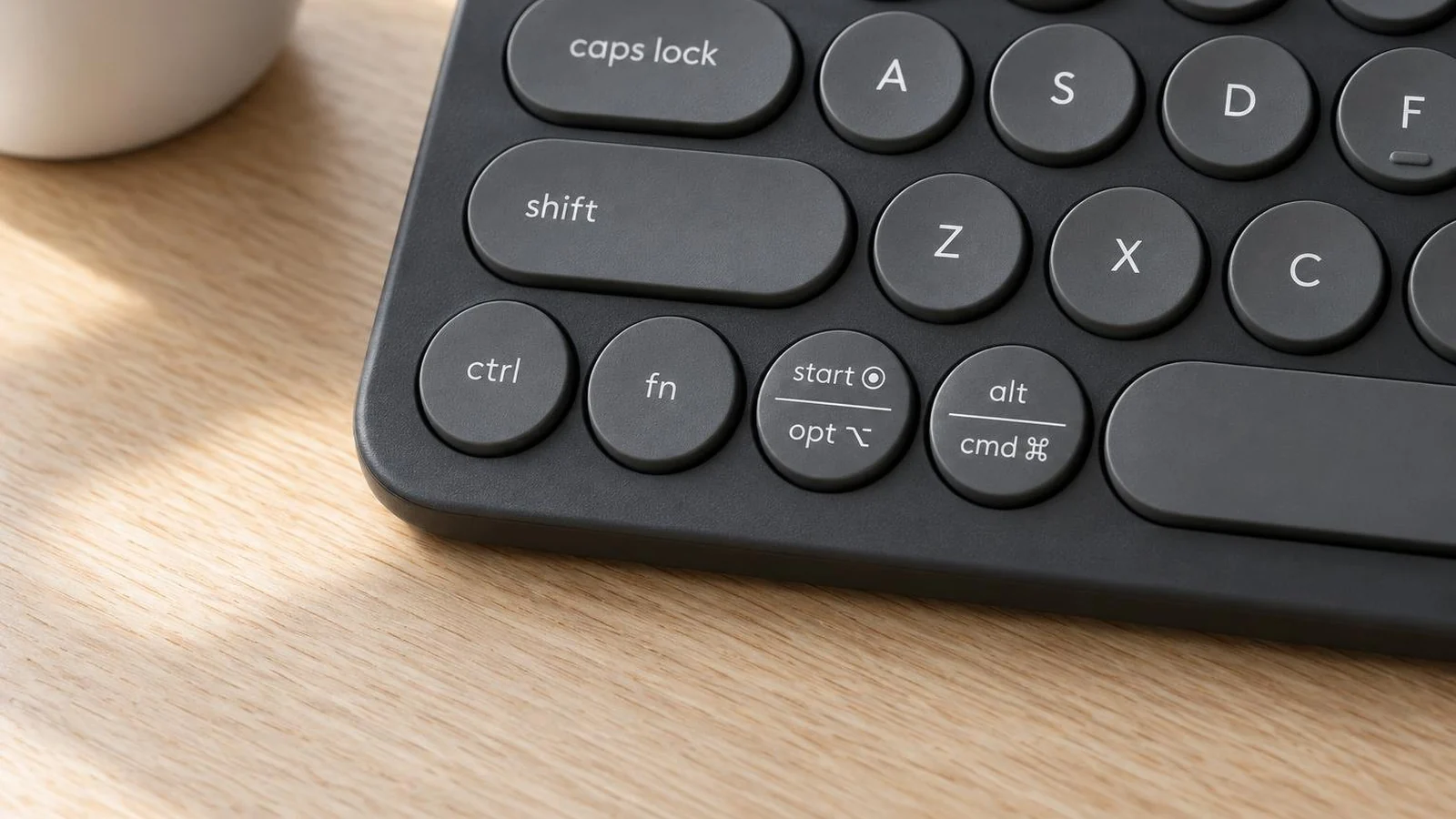
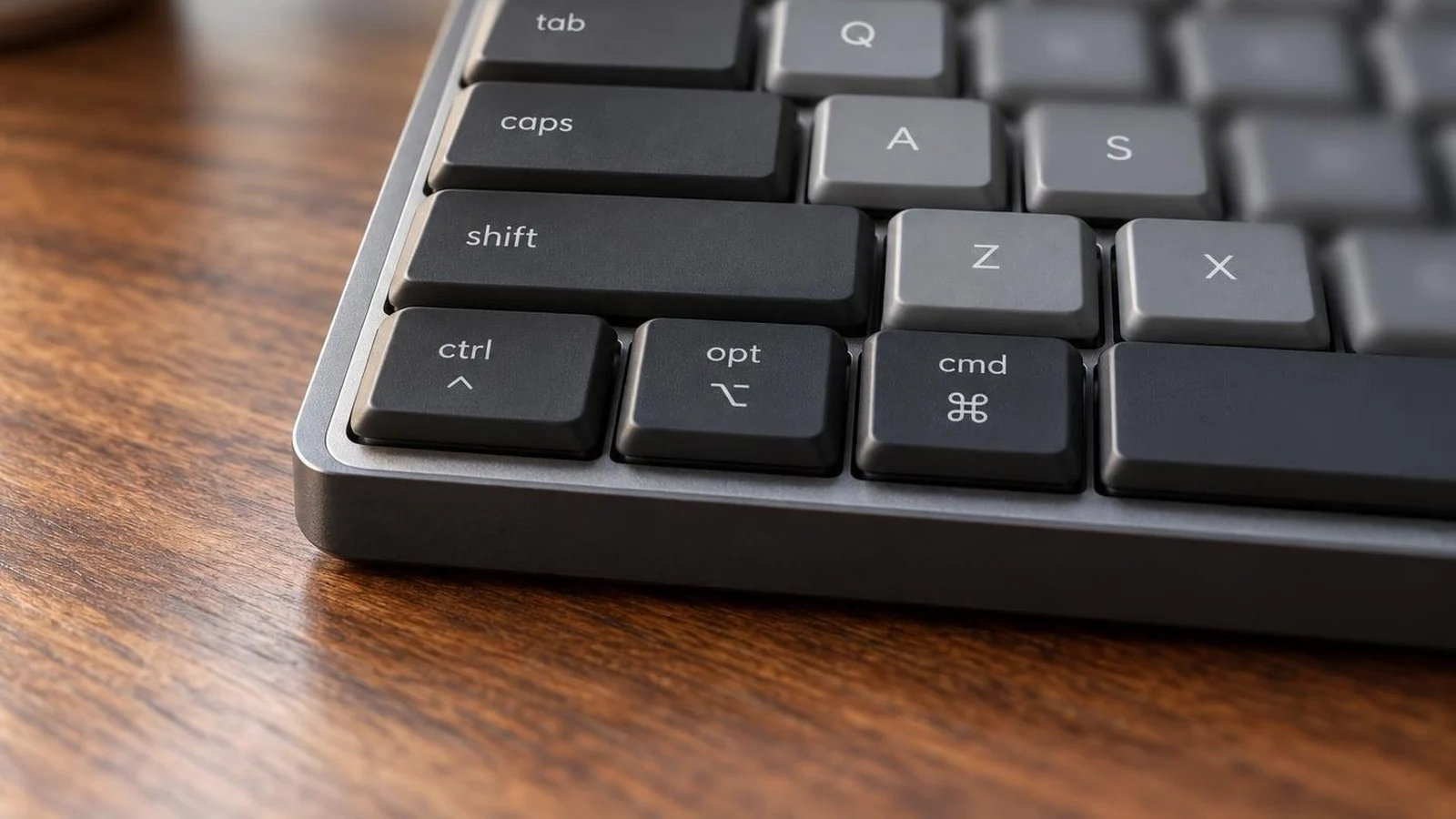
Keys labeled for Command. Apple's iPad shortcut page says most iPad shortcuts use the Command key, like a Mac, and that Command does the job Control does on a PC. All four boards here label Command and Option on the keys beside the space bar, in words or symbols, alone or next to a Windows label, so Command-C, Command-Tab and Command-Space sit where a Mac user expects them.
The Globe key. Keyboards from Apple have a Globe key, and iPadOS gives it its own shortcuts. Apple lists Globe-A to show the Dock, Globe-C for Control Center, Globe-H for the Home Screen, Globe-D for dictation, Globe-F for full screen and Control-Globe with an arrow key to tile a window to half the screen. A third-party keyboard's fn key may not do this. Logitech says its keyboards do not send the Fn/Globe keycode in a way Apple's shortcuts recognize on macOS or iOS, so window tiling and other Globe shortcuts are not supported. NuPhy and Lofree say nothing either way.
The setting that fills the gap. Apple's iPad guide gives the path for changing what a modifier key does: Settings > General > Keyboard > Hardware Keyboard > Modifier Keys, then tap a key and choose an action. Apple's page doesn't list the choices. MacRumors lists Caps Lock, Control, Option and Command as the keys you can change, and Caps Lock, Control, Option, Command, Escape, Globe and No Action as what they can do. It uses the setting to give Apple's standalone Magic Keyboard, which has no Globe key, a Globe function. iDownloadBlog gives the same actions, says the Hardware Keyboard option shows only while an external keyboard is connected, and notes that fn is not among the actions. Both walkthroughs predate iPadOS 26, so check the menu on your own iPad. Turning Caps Lock into Globe is the obvious trade if you rarely type in capitals.
| Keyboard | iPad support listed | Modifier legends | Bluetooth | Cable | Receiver | Size |
|---|---|---|---|---|---|---|
| NuPhy Air75 V3 | iOS | CTRL, OPT, CMD | 5.0, 3 devices | USB-C to USB-C, included | 2.4G dongle, plug not stated | 75%, 84 keys |
| Lofree Flow 2 84 | iPadOS and iOS | ctrl, option, command | 5.3, 3 devices | USB-C cable, other end not stated | 2.4G receiver, plug not stated | 75%, 84 keys |
| Logitech MX Mechanical Mini for Mac | iPadOS 14 or later, over Bluetooth | ctrl, opt, cmd | Bluetooth LE, 3 devices | Charging cable | None included | Compact, no number pad |
| Logitech MX Mechanical | iPadOS 14 or later, over Bluetooth | Option and start, Command and alt | Bluetooth LE, 3 devices | Charging cable | Bolt, needs USB-A, not listed for iPadOS | Full size with number pad |
Source: each maker's product page and official product images, with Bluetooth device counts for NuPhy and Lofree from RTINGS, checked October 29, 2026. "Not stated" means the maker's page does not say.
1. NuPhy Air75 V3: the one to carry
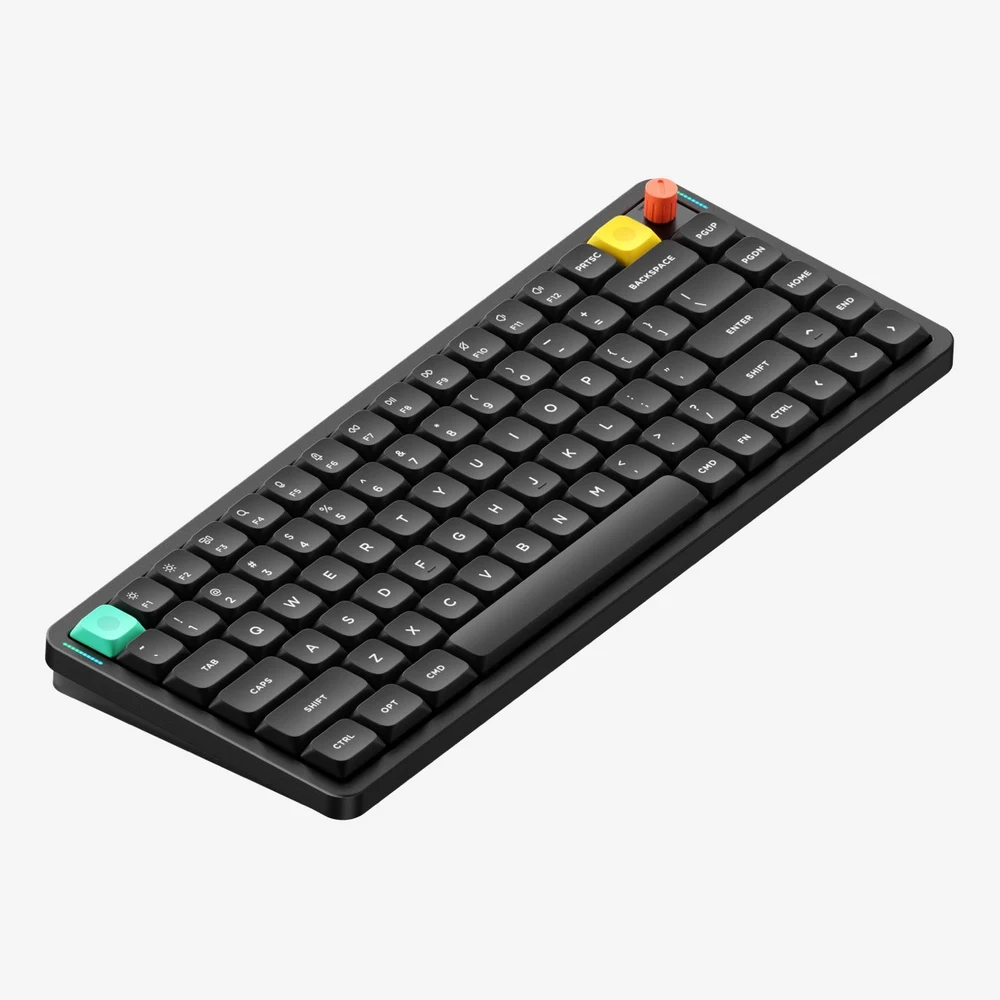
RTINGS's iPad keyboard list, updated October 26, 2026, is mostly folio cases and Logitech's K780. The Air75 V3 is its one mechanical keyboard, a notable mention that RTINGS says costs more than the K780 but types better and is more compact and portable, which makes it a better option for travel. In its full review, RTINGS says the board is easy to slip into a bag for use with tablets, though slightly heavier and taller than the V2. RTINGS adds that NuPhy sells a separate portfolio case that doubles as a stand for a phone or tablet.
For an iPad Pro, its strength is the cable. NuPhy's box list includes a USB-C to USB-C cable, so the wired mode needs no adapter. The page also lists a 2.4G dongle without naming its plug, and Bluetooth 5.0 at a 125Hz polling rate against 1000Hz on the dongle. RTINGS found it pairs with up to three Bluetooth devices. In the review's comments, RTINGS staff reported a 1 to 2 second delay when the V3 woke from sleep on Bluetooth, with every keypress still registered.
NuPhy lists macOS, Windows, Android and iOS. It does not name iPadOS separately. Its official image shows CTRL, OPT and CMD on the left of the space bar and CMD, FN and CTRL on the right. RTINGS found the typing very quiet with the silent Blush nano switches, and says the flat nSA keycaps may take some getting used to. The switches are hot-swappable.
2. Lofree Flow 2 84: iPadOS by name, for a desk
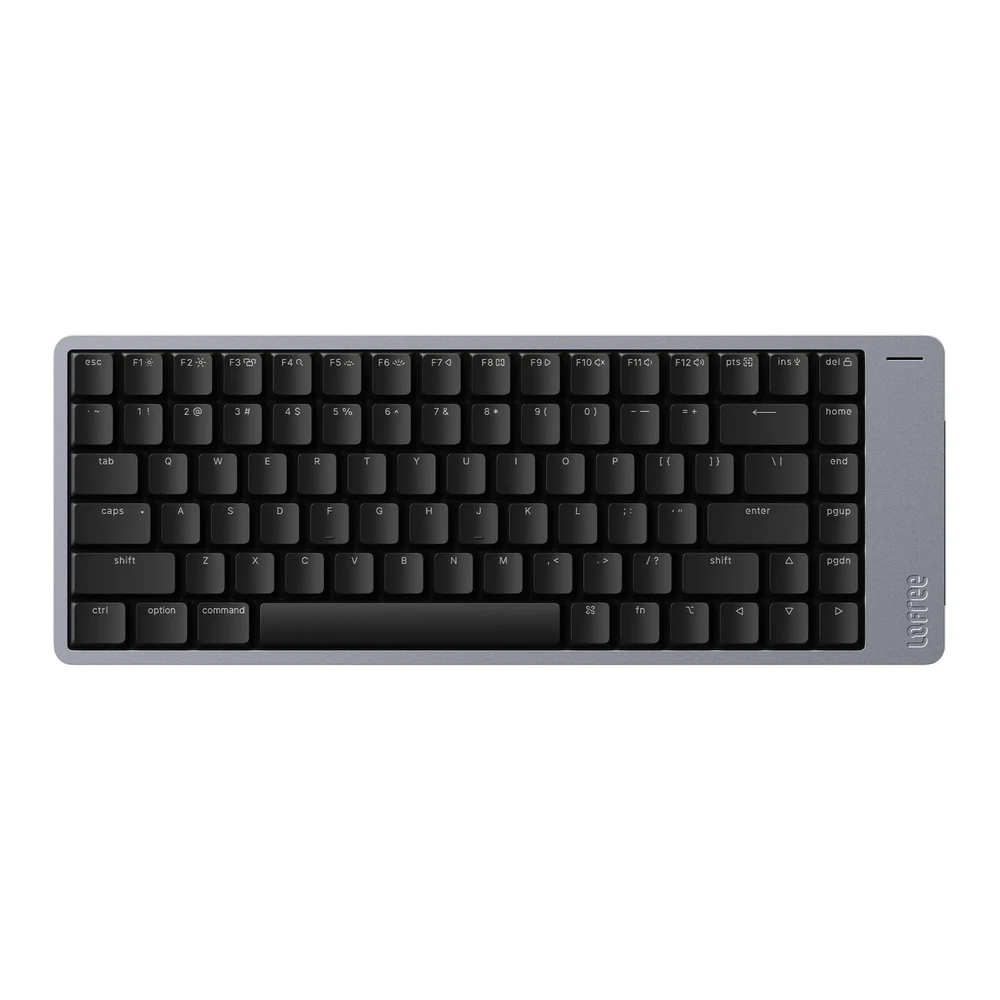
Lofree's Flow 2 84 page names iPadOS in its compatibility list: Windows, Android, macOS, iPadOS and iOS. Unlike Logitech, it doesn't tie that to one connection. It connects by 2.4GHz receiver, Bluetooth 5.3 or USB-C cable. The box holds a USB-C cable, four extra keycaps and a 2.4G receiver, and Lofree doesn't say what is on the far end of the cable or which plug the receiver has. Lofree's official top view of the Space Gray board shows ctrl, option and command printed to the left of the space bar, with the command and option symbols to the right.
RTINGS reviewed the Flow 2 in its largest size. The 84-key board is one of two smaller sizes in the same line. It calls the boards suitable for tablet use, with Bluetooth pairing for up to three devices, superb typing quality and remarkable build quality. It also says the solid aluminum case makes them relatively heavy for their size and clearly designed for stationary desktop use rather than portability. Its first unit had intermittent wired connection problems and was replaced, and the tactile switch option can be on the louder side.
Lofree rates the 3,000mAh battery for up to 120 hours on Bluetooth with the backlight off and 17 hours with it on. Lofree's touch bar adjusts volume and screen brightness, but Lofree does not say whether it works on an iPad. The flip-out kickstand raises the keyboard, not the iPad.
3. Logitech MX Mechanical Mini for Mac: Mac keys, Bluetooth only
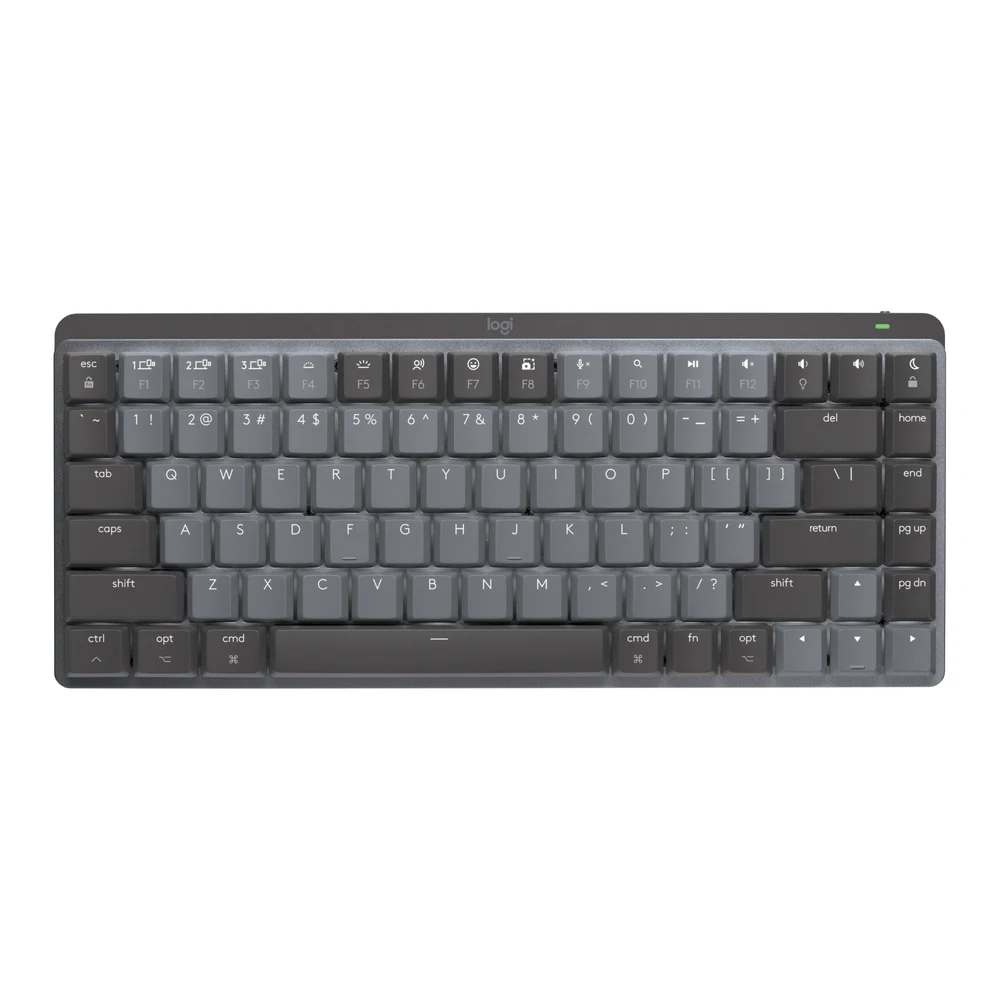
Logitech describes the MX Mechanical Mini for Mac as designed for Mac and fully compatible with macOS and iPadOS. Its system requirements list iPadOS 14 or later under Bluetooth Low Energy, with basic functions supported without software on systems other than macOS. The keys read ctrl, opt and cmd. Logitech names the MacBook, iMac and iPad as devices you pair over Bluetooth and switch between at the push of a button, up to three of them.
Logitech lists iPad support under Bluetooth only. The box holds the keyboard and a USB-C to USB-C charging cable, and Logitech lists the Bolt receiver as compatible but not included. Logi Options+, the app that changes its Fn functions and backlight effects, runs on Windows and macOS. And it is a Logitech keyboard, so its fn key will not act as Globe. The Modifier Keys setting above is the way to get one.
4. Logitech MX Mechanical: full size, also Bluetooth only on iPad
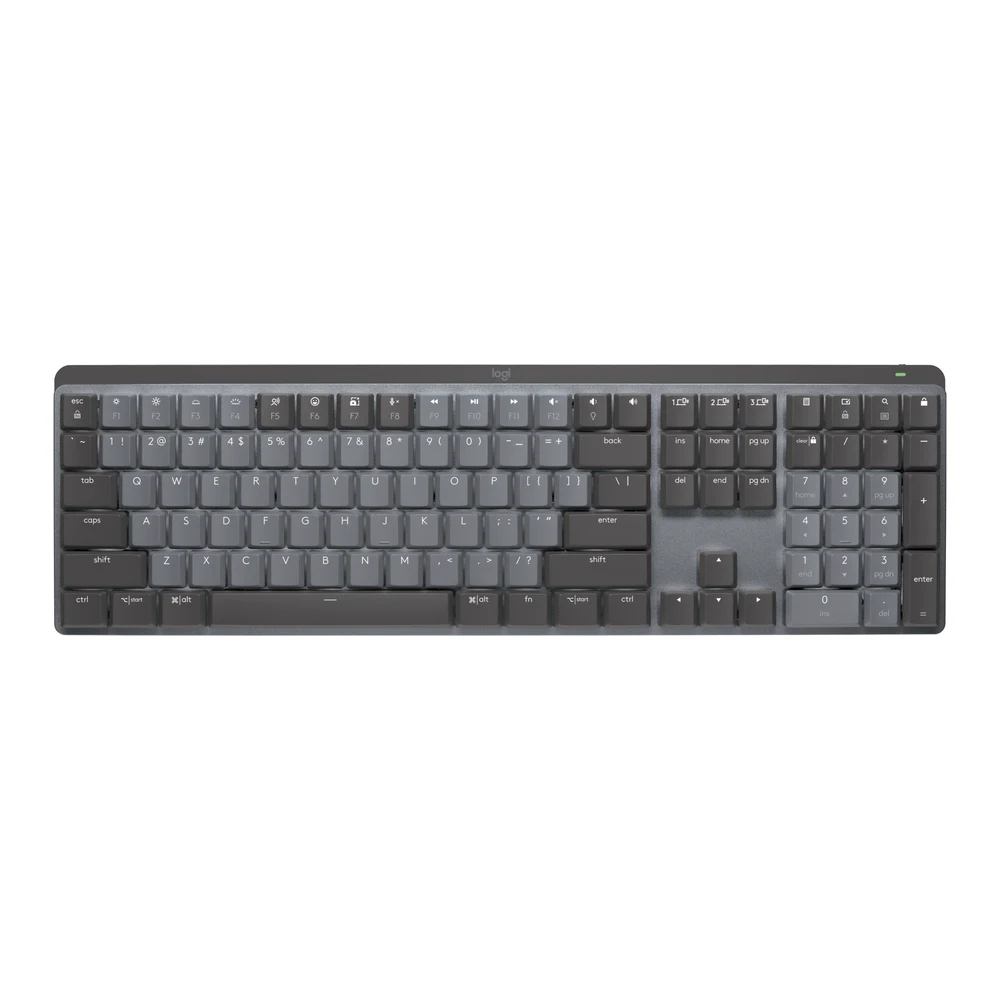
The MX Mechanical adds a number pad and a Bolt receiver in the box. Logitech doesn't list that receiver for iPads. Logitech's spec list for the Bolt receiver reads "Requires USB-A port" and names Windows, macOS, Linux and ChromeOS. iPadOS 14 or later appears only in the Bluetooth requirements. The cable in the box is listed as a USB-A to USB-C charging cable. So, as with the Mini, plan on Bluetooth with up to three devices on Easy-Switch.
Its keycaps carry two labels on the keys beside the space bar, the option symbol with start and the command symbol with alt, so the same board reads correctly on an iPad and a Windows PC. RTINGS found it comfortable for long typing sessions, with minimal noise from the tactile switches it tested. It calls the board adequate for mobile devices and says its bulk makes it inconvenient to carry, and notes that some buttons don't work as intended on macOS. Its switches are not hot-swappable.
Which mechanical keyboard to buy for an iPad Pro
If the keyboard travels with the iPad, buy the NuPhy Air75 V3 and use its USB-C cable when you want a wired connection. It is the only one of the four that RTINGS names in its iPad list.
If the iPad lives on a desk and typing feel matters most, buy the Lofree Flow 2 84, and plan to charge it more often if you leave the backlight on.
If you already switch between a Mac and an iPad and want Mac labels and Bluetooth only, buy the MX Mechanical Mini for Mac. Choose the full-size MX Mechanical only if you need the number pad, and expect to use it over Bluetooth.
Whichever you pick, open Settings > General > Keyboard > Hardware Keyboard > Modifier Keys once it is connected, and give one key the Globe action if you use iPad shortcuts.
Sources
- Apple, Learn iPad keyboard shortcuts, Use shortcuts on an Apple external keyboard with iPad, Connect iPad to Bluetooth accessories, Charge and connect with the USB-C port on your iPad and iPad Pro specifications
- MacRumors, How to Remap Modifier Keys on iPad When Using a Keyboard, and iDownloadBlog, How to remap Command, Option, Caps Lock, and other keys on iPad keyboard
- RTINGS.com, best iPad keyboards and reviews of the NuPhy Air75 V3, Lofree Flow 2 and Logitech MX Mechanical
- Logitech, MX Mechanical Mini for Mac, MX Mechanical and Fn key behavior on macOS or iOS
- NuPhy, Air75 V3
- Lofree, Flow 2 84
All sources were checked on October 29, 2026.